How to add screen pop up?
Click on the add button on the right hand side.

Fill out all the details
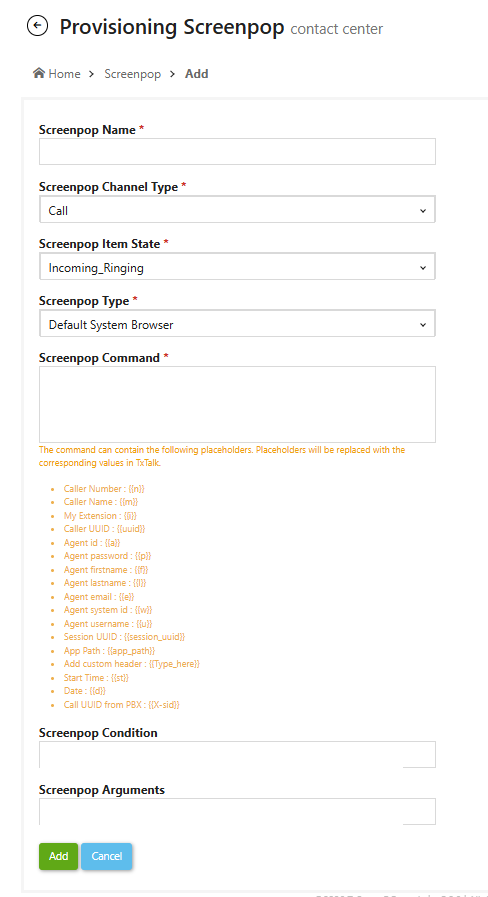
Add the below URL to the screenpop command as per the type of the call.
Manual :
https://<txcontact-hostname>/txdialer/dispose/calldisposition/?Time={{st}}&_tenant_id=metro&agent_id={{a}}&_queue_id={{X-queue_id}}&_customer_number={{n}}&cmp_id=CMP0003&call_id={{X-sid}}&_session_uuid={{session_uuid}}&_contact_id={{X-contact_id}}&_make_call=*82&call_type=Manual&_disp=dispOutboundProject&_auto_close=5&_auto_dispose=30&RTI_WS_PORT={{RTI_WS_PORT}}&RTI_WSS_PORT={{RTI_WSS_PORT}}
Dialer:
https://<txcontact-hostname>/txdialer/dispose/calldisposition/?Time={{st}}&_tenant_id=metro&agent_id={{a}}&queue_id={{X-queue_id}}&_customer_number={{n}}&cmp_id={{X-campaign_id}}&call_id={{X-call_id}}&_session_uuid={{session_uuid}}&contact_id={{X-contact_id}}&_make_call=*82&call_type={{X-calling_type}}&_auto_dispose=45&_auto_close=5&_crm_value={{X-crm_id}&RTI_WS_PORT={{RTI_WS_PORT}}&RTI_WSS_PORT={{RTI_WSS_PORT}}
Click on Add button to create the screenpop.
Go to Administration>>Provisioning>>Prov Settings
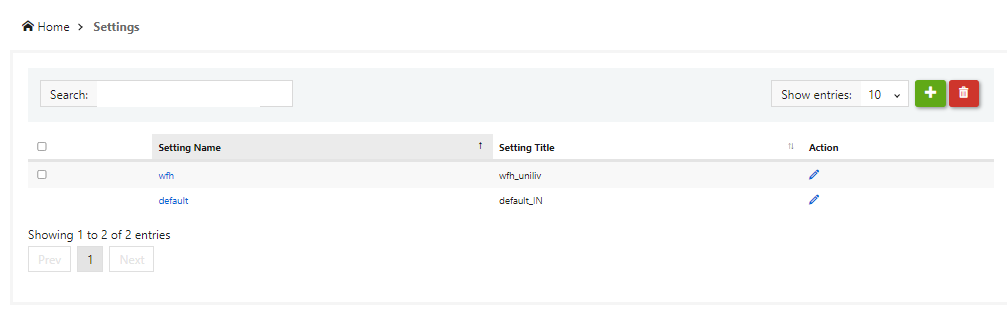
Click on the Setting Name.
Once user clicks on setting name it will redirect to the Provisioning Settings page.
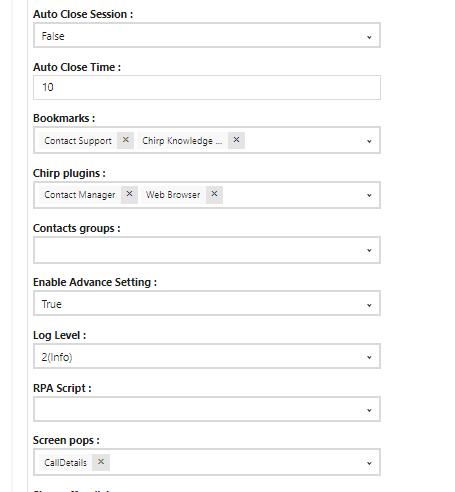
Under the Screen Pops option select the created screen pop up.
Click on update button.
If the client wants to enable the redial option from the Screen Popup page for a particular campaign, please follow the steps below:
Step 1: Log in to the TxDialer portal.
Step 2: Open the required campaign.
Step 3: Navigate to Additional Settings.
Step 4: Configure the settings as shown below.
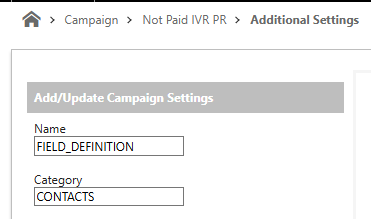
Give Name as FIELD_DEFINITION
Category as CONTACTS
In value configure "redial": "yes" as shown below.
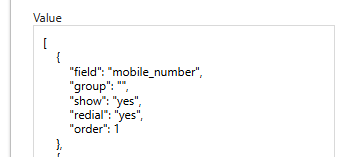
Click on update to save changes.