SSL Error encountered during Chirp login? Refer to the following KB article for a solution.
How to Fix Chirp Login Error
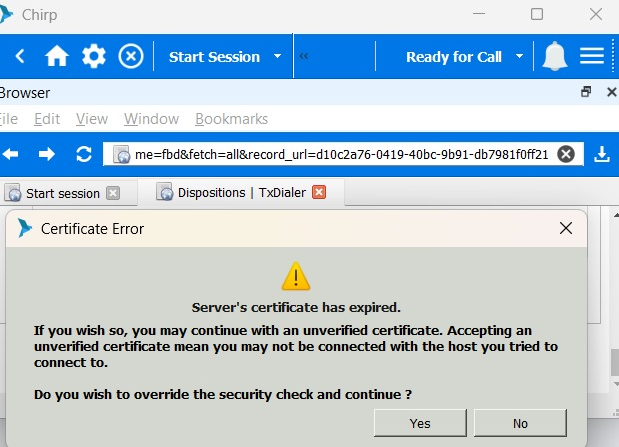
If you are facing an error every time you log in to Chirp, you can fix it by following these steps:
Step 1: Download the Zip File
- Open your web browser and go to the following link:
https://s3.amazonaws.com/ftp.ilinknet.com/TxContact/txtalklocalssl.info.zip
-
Click on the link to download the zip file.
-
Save the zip file to a location where you can easily find it, such as your Downloads folder.
Step 2: Extract the Zip File
-
Right-click on the zip file and select "Extract All" from the context menu.
-
In the "Extract Files" window, select the destination folder where you want to extract the files. The default destination folder is the folder where the zip file is saved.
-
Click on the "Extract" button.
-
The zip file will be extracted to the specified destination folder.
Step 3: Copy the File Contents to the Specified Path
- Open File Explorer and go to the following folder:
C:\Program Files\Interlink Network Systems\Chirp\certificate
-
Open the zip file that you extracted in Step 2.
-
Select all of the files in the zip file.
-
Drag and drop the selected files to the folder you opened in Step 1.
-
The files will be copied to the specified path.
Step 4: Rename the Existing Files
- In the folder you opened in Step 1, you will see two existing files:
txtalklocalssl.info.crt txtalklocalssl.info.crt
-
Right-click on the first file (txtalklocalssl.info.crt) and select "Rename" from the context menu.
-
Type "txtalklocalssl.info.crt_backup" as the new filename and press Enter.
-
Right-click on the second file (txtalklocalssl.info.crt) and select "Rename" from the context menu.
-
Type "txtalklocalssl.info.crt_backup" as the new filename and press Enter.
-
The two existing files have been renamed.
Step 5: Copy the Contents of the Zip Files to the Same Path
-
Copy the contents of the zip file that you extracted in Step 2 to the folder you opened in Step 1.
-
You can do this by dragging and dropping the files, or by using the "Copy" and "Paste" commands.
Step 6: Verify that the Files Have Been Copied
- Open File Explorer and go to the following folder:
C:\Program Files\Interlink Network Systems\Chirp\certificate
- You should see the following files in the folder:
txtalklocalssl.info.crt txtalklocalssl.info.crt_backup
- The new files have been copied to the specified path.
Note: You will need administrator privileges to perform these actions. If you are not an administrator, you can ask an administrator to help you.