How to configure Preview Campaign ?
Overview
A Preview Campaign allows agents to view and select contacts manually before initiating a call. Agents can review the contact details and choose which contact to call from the assigned campaign.Steps 1.
Log in to the TxDialer & Navigate to Campaign Listing page .
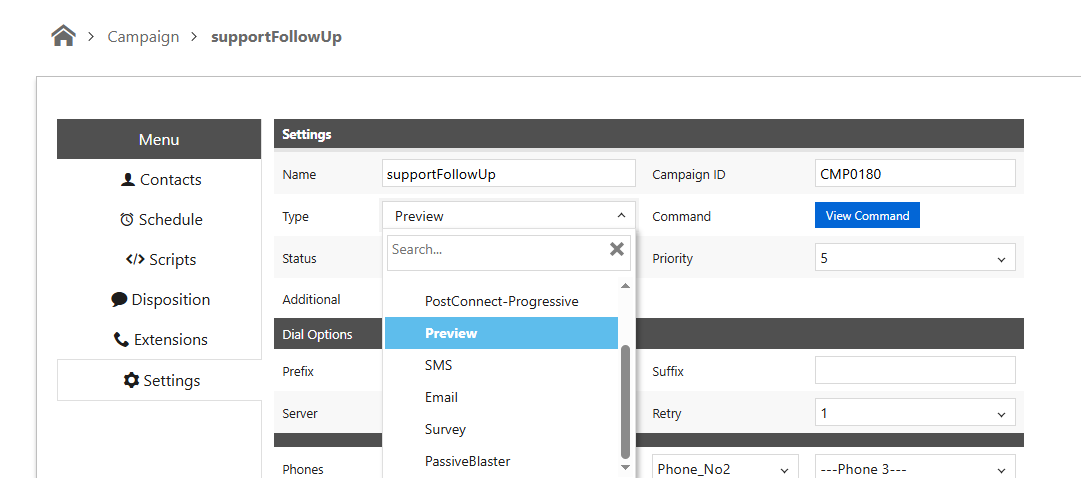
Create a new campaign or edit an existing campaign and select Campaign Type as Preview in the Campaign Settings page.
Note: While uploading the contact list, ensure that the Preferred Agent column is included, as it is mandatory for Preview Campaigns.
Steps 2.
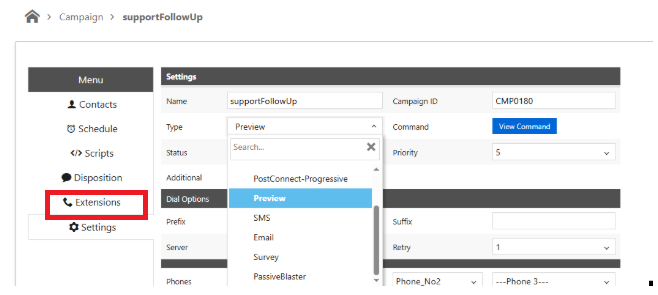
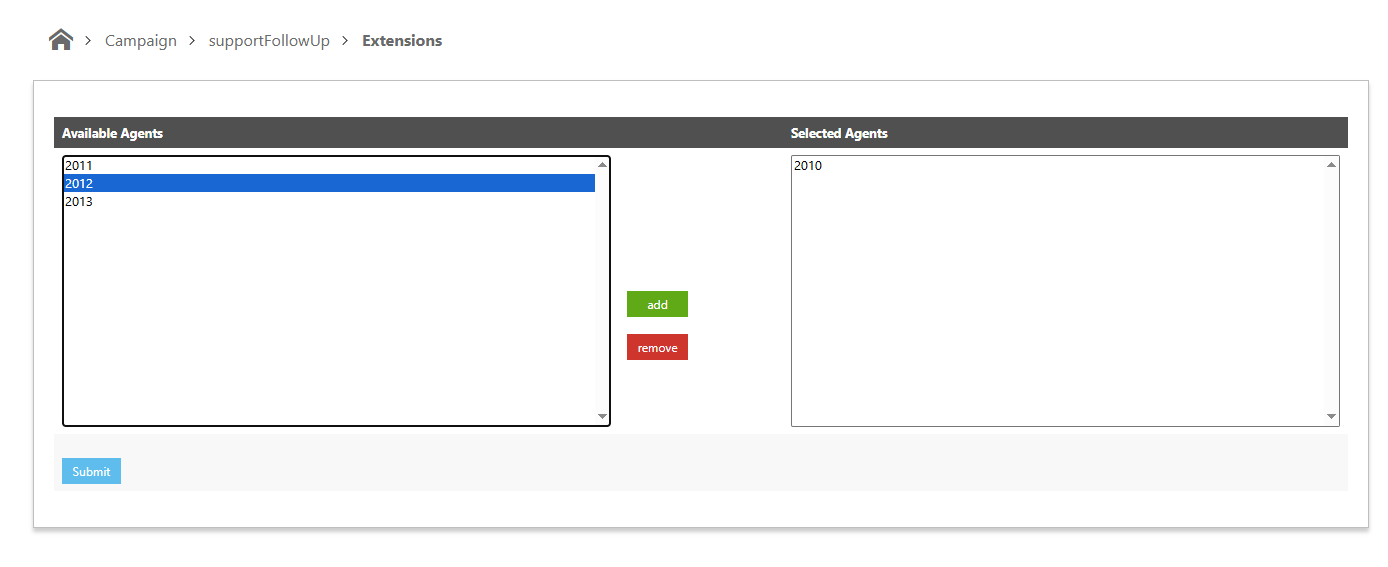
Navigate to the Extension section and assign the required agents to the campaign.
(Refer to the highlighted section in the screenshot.)
Note: An agent can be assigned to multiple Preview Campaigns.
Steps 3.
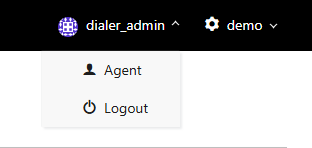
Log in to the Chirp application (Softphone) using the Agent Login option with the agent's credentials (Agent ID and Password).
After successful login, select the required Campaign Name from the available campaign list.
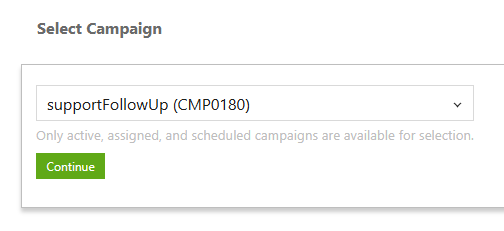
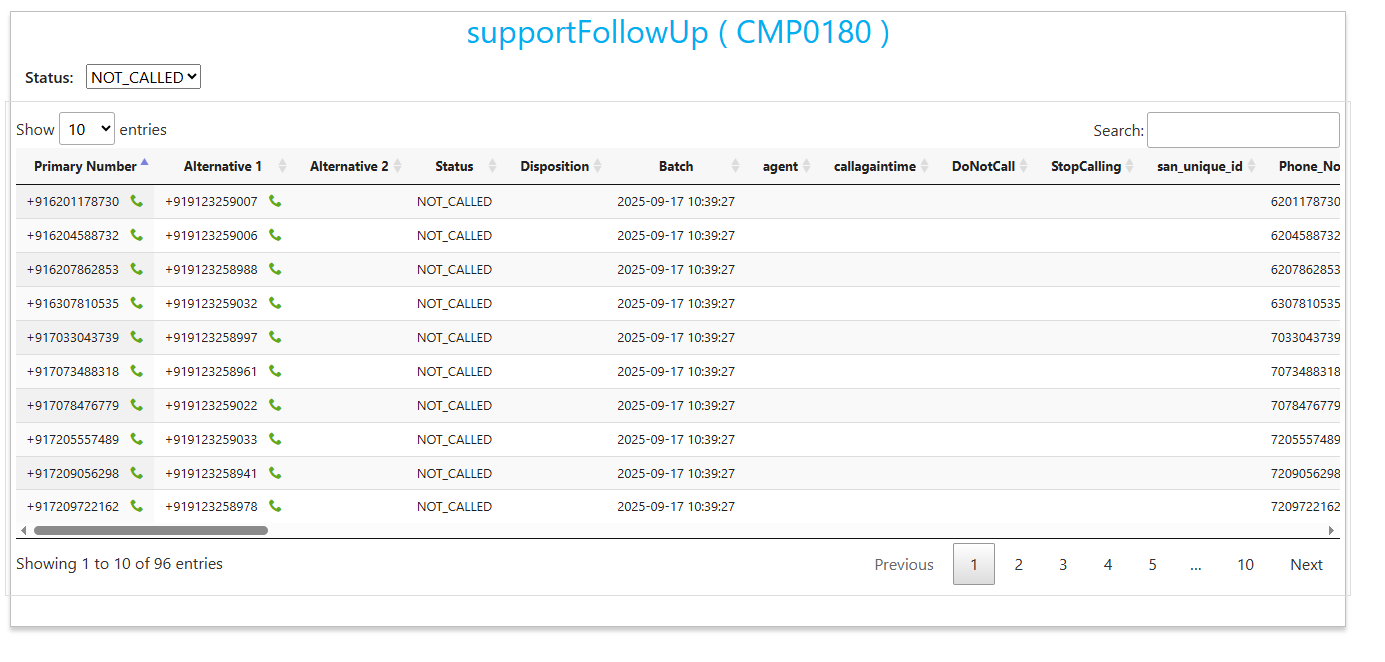
The Dialer will display only the contacts associated with the selected campaign.
The agent can review the available contacts, select a contact, and initiate the call manually.
Expected Result
- Agents can view contacts assigned to the selected Preview Campaign.
- Agents can manually choose which contact to call.
- Only contacts associated with the selected campaign will be displayed to the agent.
Did you find it helpful?