How to Disable Google Chrome and Microsoft Edge Restrictions for Zoho Click to Call
This Knowledge Base article (KB) explains how to remove Google Chrome and Microsoft Edge restrictions that block the Zoho Click-to-Call feature, ensuring calls can be launched directly from the browser without interruption when the agent’s Chirp application is running in the background with the appropriate state such as “Ready for Call” or “Outbound.”
Disabling Google chrome Restriction
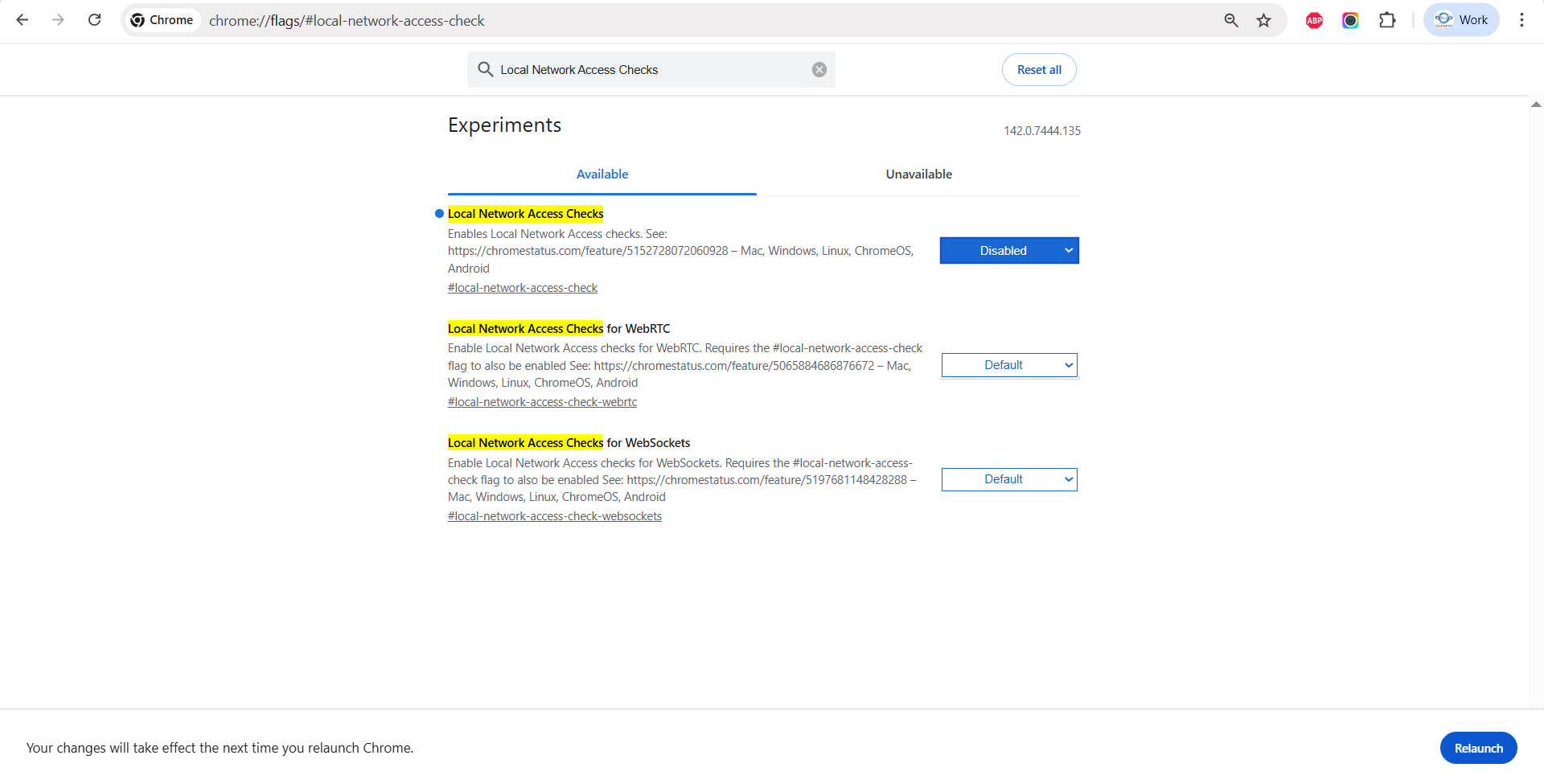
Step 1: Open Google Chrome and enter the following URL in the address bar:
chrome://flags/#local-network-access-check
(Refer to the screenshot below.)

Step 2: Set the option to Disabled (as shown in the screenshot).
Step 3: Click Relaunch at the bottom right corner to apply the changes.
Disabling Microsoft Edge Restriction
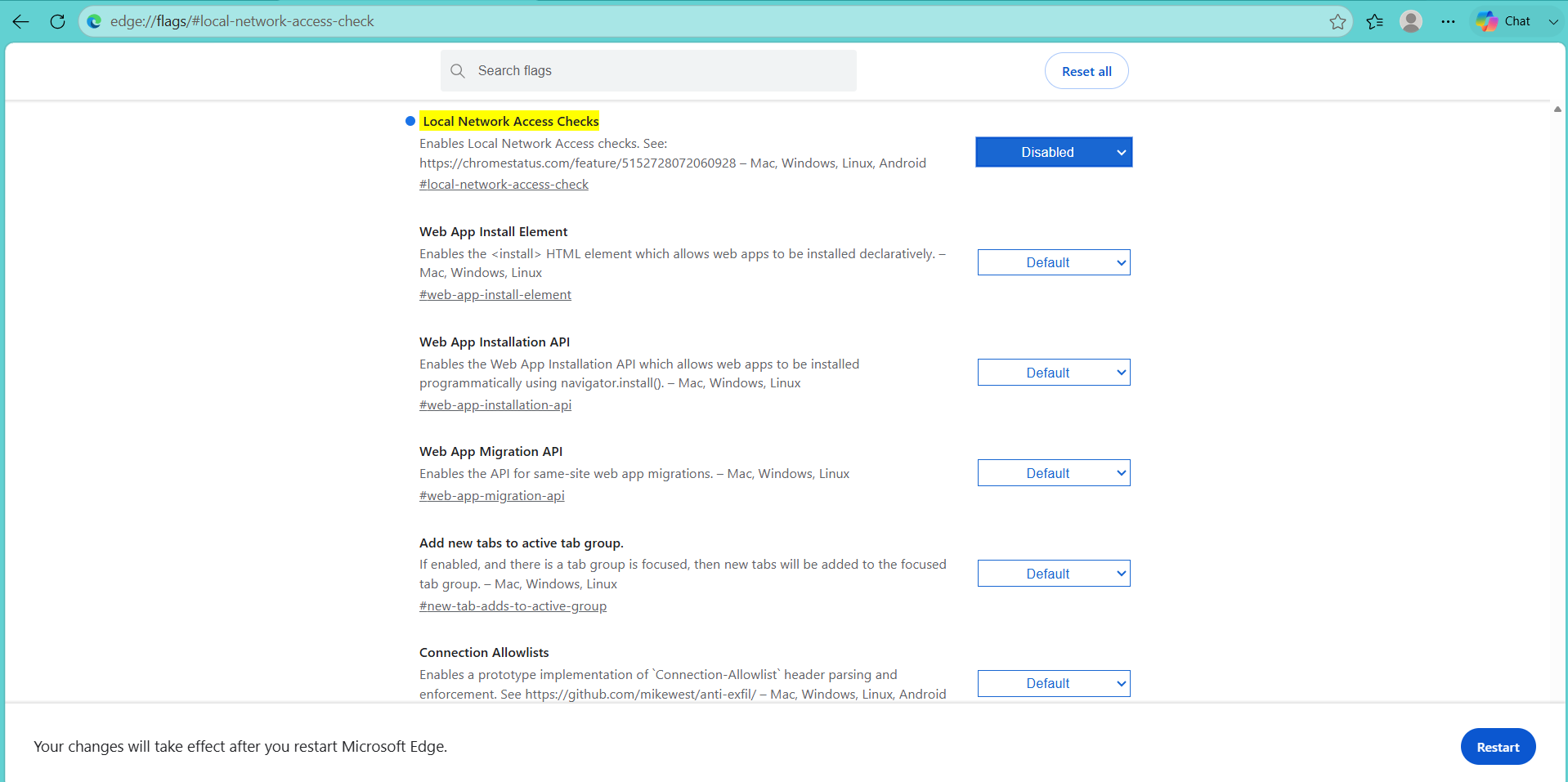
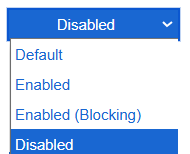
Step 1: Open Google Chrome and enter the following URL in the address bar:
chrome://flags/#local-network-access-check
(Refer to the screenshot below.)

Step 2: Set the option to Disabled (as shown in the screenshot).
Step 3: Click Relaunch at the bottom right corner to apply the changes.