How to Upload License in SmartQ
Overview :
This article provides a step-by-step guide on how to upload a license in SmartQ. The license is typically provided as a ZIP file containing tenant-specific and global license files. Proper upload ensures uninterrupted service and correct license validation across tenants.
Prerequisites :
- Access to SmartQ with superadmin privileges
- License ZIP file provided by the Engineers / Clients
Steps to Upload License :
- Download and Extract License File
- Download the provided license ZIP file.
- Extract the contents to a local folder.
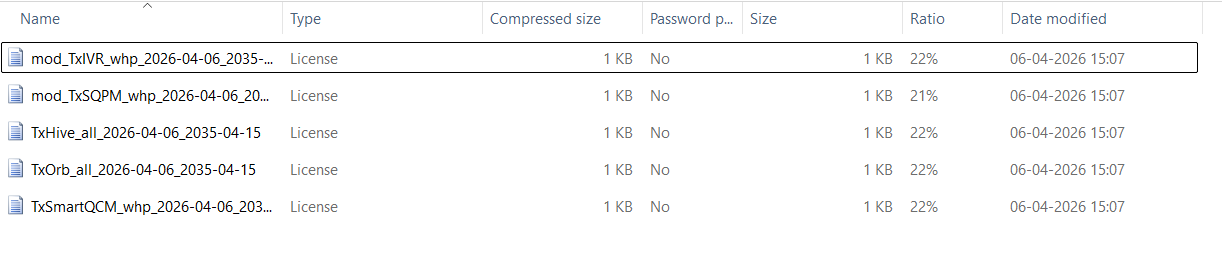
- The extracted file looks something like this:
- Login to SmartQ
- Go to: Administration → Tenant
- Go to: Administration → Tenant
- Upload License Files
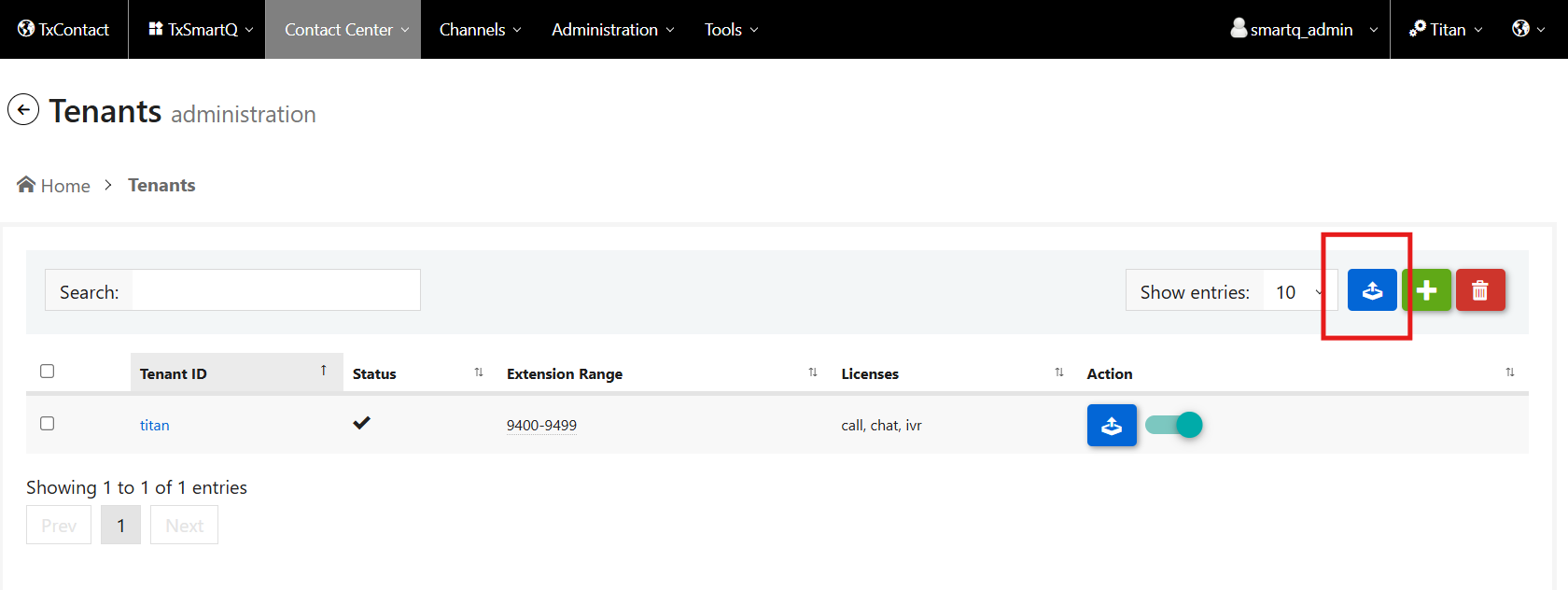
You will find two upload options:- Global License Upload (All Tenants)
- Use the upper upload button.
- From the extracted file you will find all in the file ( for ex: TxHive_all) name.
- Upload this file to apply the license to all tenants.
- (Refer to screenshot below)
- Tenant-Specific License Upload
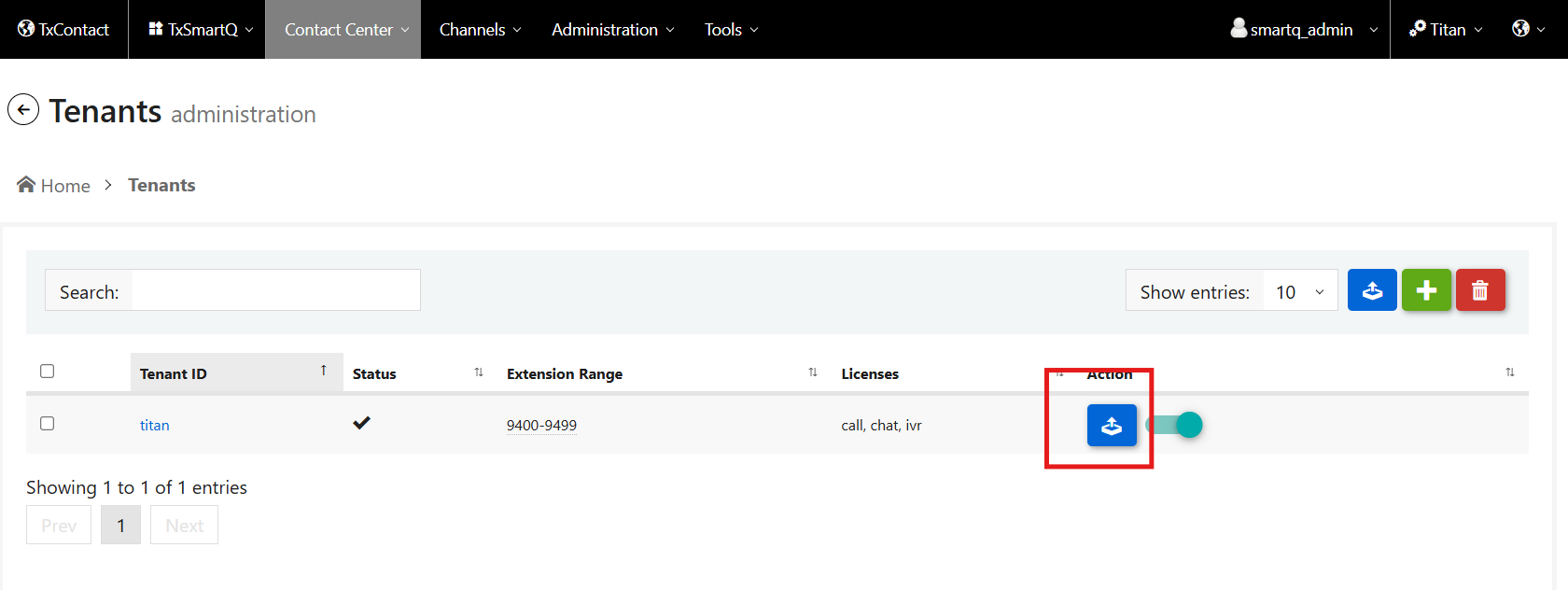
- Use the lower upload button.
- From he extracted file you will find the tenant name ( for ex: mod_TxIVR_Titan___)
- Upload this file for the respective tenant.
- (Refer to screenshot if available)
- Global License Upload (All Tenants)
- Verify License Update
- After successful upload, wait for approximately 5 minutes.
- Check the ORB table: 100_LICENSEISSUED
- Execute and confirm that the expiry date is updated.
- Perform Validation
- Make a few test calls to ensure the system is functioning correctly with the updated license.
Did you find it helpful?