How to add screen pop
Click on the add button on the right hand side.

Fill out all the details and add the command.
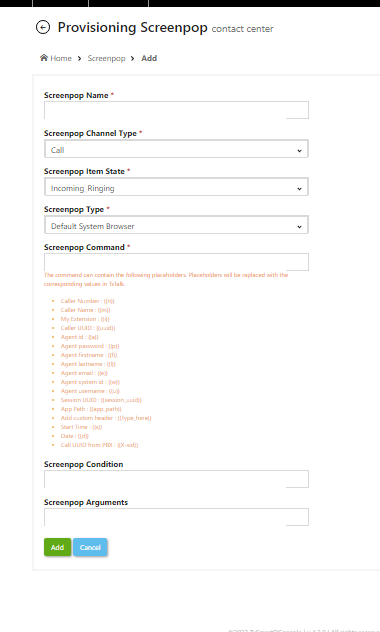
Add the below URL in the screenpop command field as per the type of the call.
Manual call :
https://<txcontact-hostname>/txdialer/dispose/calldisposition/?Time={{st}}&_tenant_id=cashkaro&agent_id={{a}}&_queue_id={{X-queue_id}}&_customer_number={{n}}&cmp_id=CMP0003&call_id={{X-sid}}&_session_uuid={{session_uuid}}&_contact_id={{X-contact_id}}&_make_call=*82&call_type=Manual&_disp=dispOutboundProject&_auto_close=5&_auto_dispose=30&RTI_WS_PORT={{RTI_WS_PORT}}&RTI_WSS_PORT={{RTI_WSS_PORT}}
The campaign ID for manual calls is the master campaign ID, and all the necessary configurations such as mask, view, edit, and agent script can be configured in the master campaign
Dialer:
https://<txcontact-hostname>/txdialer/dispose/calldisposition/?Time={{st}}&_tenant_id=cashkaro&agent_id={{a}}&queue_id={{X-queue_id}}&_customer_number={{n}}&cmp_id={{X-campaign_id}}&call_id={{X-call_id}}&_session_uuid={{session_uuid}}&contact_id={{X-contact_id}}&_make_call=*82&call_type={{X-calling_type}}&_auto_dispose=45&_auto_close=5&_crm_value={{X-crm_id}&RTI_WS_PORT={{RTI_WS_PORT}}&RTI_WSS_PORT={{RTI_WSS_PORT}}
Click on Add button to create the screenpop.
Go to Administration>>Provisioning>>Prov Settings
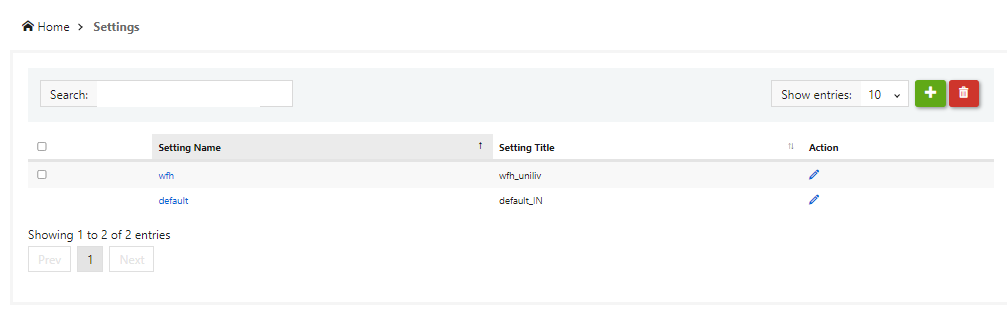
Click on the Setting Name.
Once user clicks on setting name it will redirect to the Provisioning Settings page.
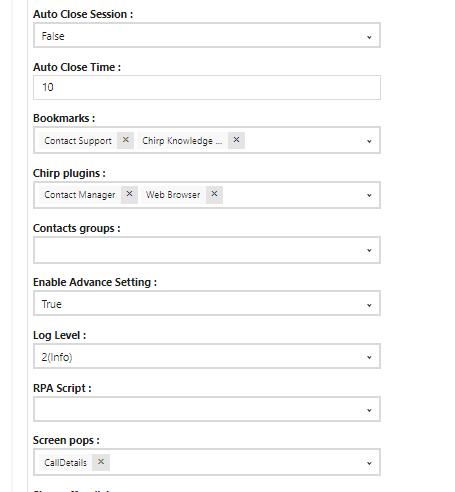
Under the Screen Pops option select the created screen pop up.
Click on update button.