How to Fix If Enable/Disable Option Not Working in CRM Integration Module
Overview
In some cases, the Enable/Disable option for CRM integration users may not function as expected. This issue is often caused by mismatched user mapping details between the integration configuration and the associated CRM user records.
Symptoms
- Clicking Enable or Disable has no effect.
- User synchronization cannot be activated or deactivated.
- Integration user mapping appears configured, but actions fail to execute.
Cause
The issue may occur when there is a mismatch between the user information configured in the integration module and the corresponding CRM user details. Common mismatches include:
- Username differences
- Extra or missing spaces
- Incorrect Agent ID
- Incorrect CRM Username
- Inconsistent user mappings
Resolution
Step 1: Verify User Mapping Details
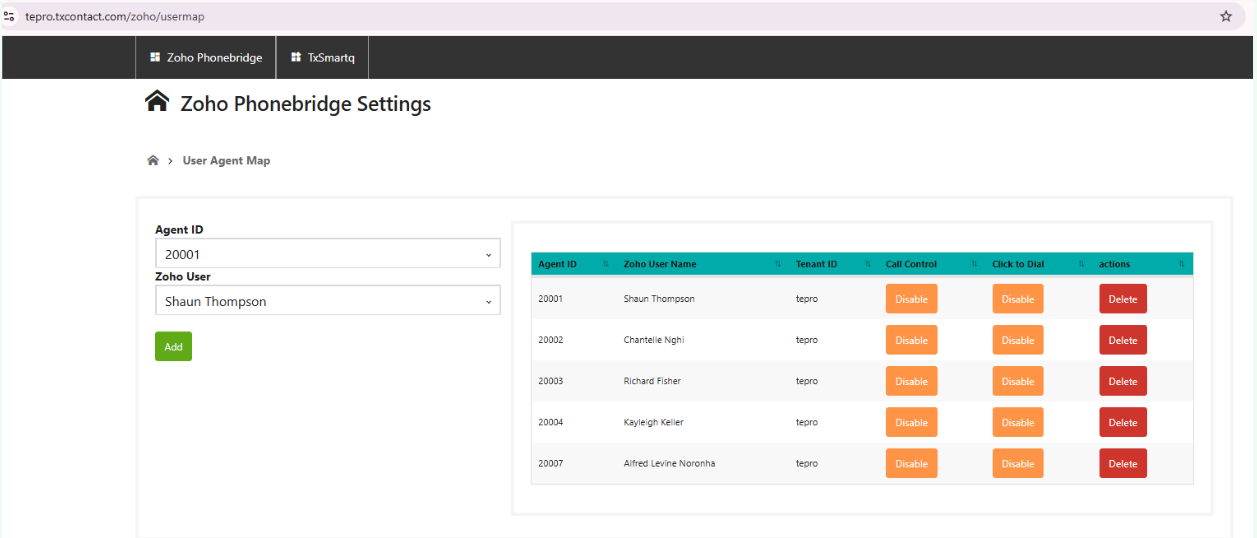
- Navigate to the Integration/User Mapping section.
- Compare the values displayed in the user selection dropdown with the mapped user details (at the right hand side)
- Verify the following fields:
- User Name
- Agent ID
- CRM Username
- Any other mapped identifiers
- Ensure that spelling, capitalization, and spacing match exactly.
Step 2: Recreate User Mappings (If Required)
If any mismatch is identified:
- Delete the affected user mapping.
- Recreate the user mapping using the correct details.
- Save the configuration.
- Test the Enable/Disable functionality again.
Step 3: Recreate All User Mappings
If no mismatch is found and the issue persists:
- Navigate to the Integration User Management page.
- Use the Delete option under Actions to remove all existing user mappings.
- Recreate all users and mappings from scratch.
- Save the changes.
- Verify that the Enable/Disable functionality is working correctly.
Validation
After recreating the mappings:
- Attempt to Enable or Disable a user.
- Confirm that the status changes successfully.
- Verify that synchronization functions operate as expected.
Screenshot
Did you find it helpful?