How to Update Contact Lists in TxHelpdesk
Overview
This article explains how to update the Contact Lists in TxHelpdesk by adding email recipients for specific line items.
Steps to Update Contact Lists
Step 1: Open the Admin Portal
Log in to TxHelpdesk and click on the Admin icon.
Step 2: Navigate to Contact Lists
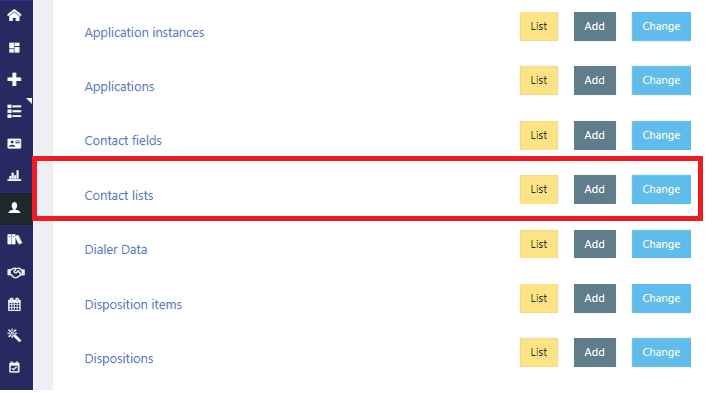
Search for the Contact Lists option and click the List button.
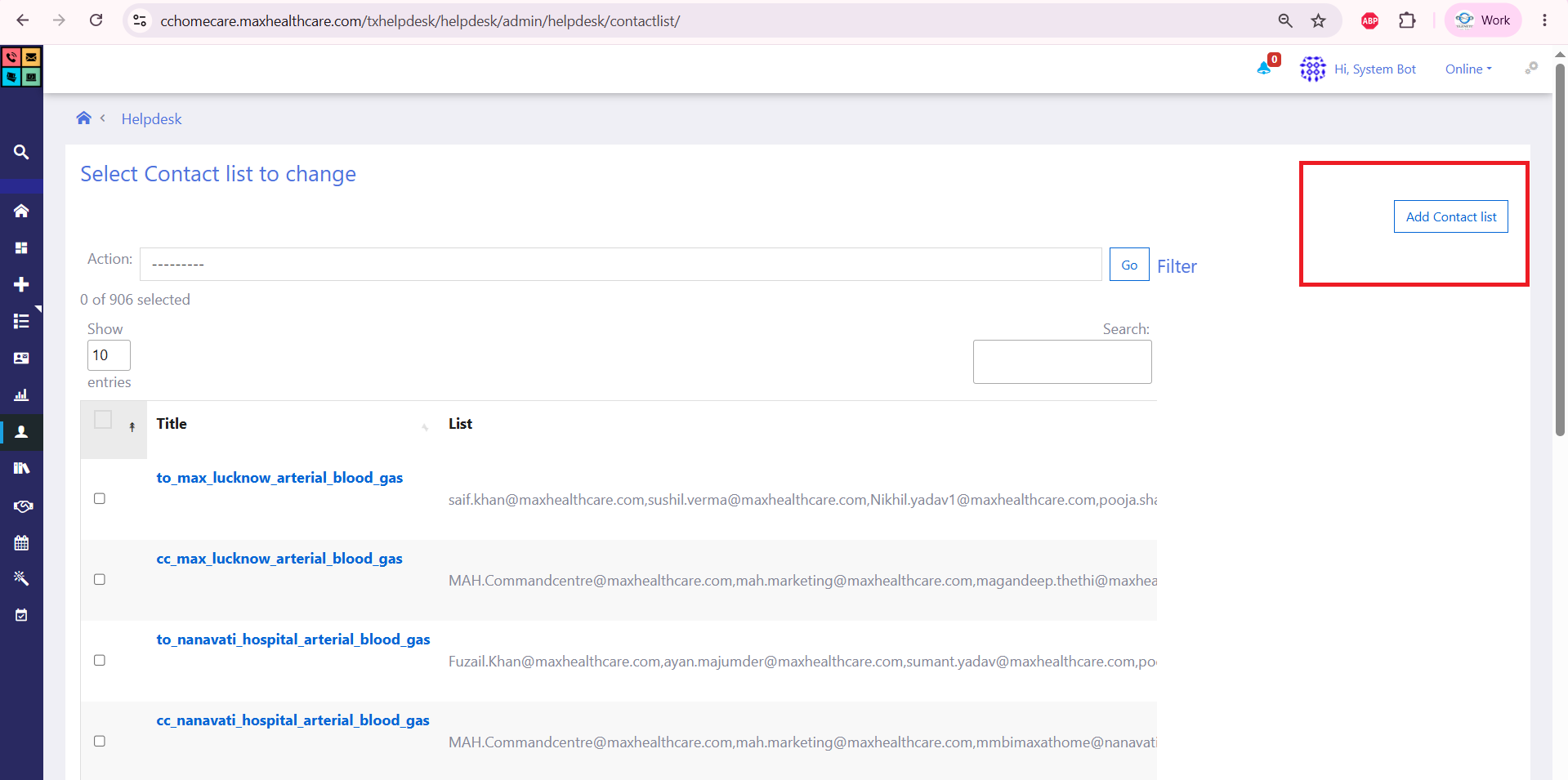
Step 3: Add a Contact List
Click on Add Contact List (highlighted in red).
Step 4: Add Contact Details
Contact details should be added based on the client's requirement, either in the To or CC contact lists.- Title: Enter the contact list name using the naming convention below:
to_<location>_<line_item>cc_<location>_<line_item>
- List: Add the required contact details (email IDs) based on the client's requirement. Each email address in the List field must be separated by a comma (,).
Examples:
cc_delhi_ncr_fumigationcc_delhi_fumigationcc_ncr_fumigation
Note:
- Contact details should be added based on the client's requirement, either in the To or CC contact lists.
- Each email address in the List field must be separated by a comma (,).
- After updating the details, click Save to apply the changes.
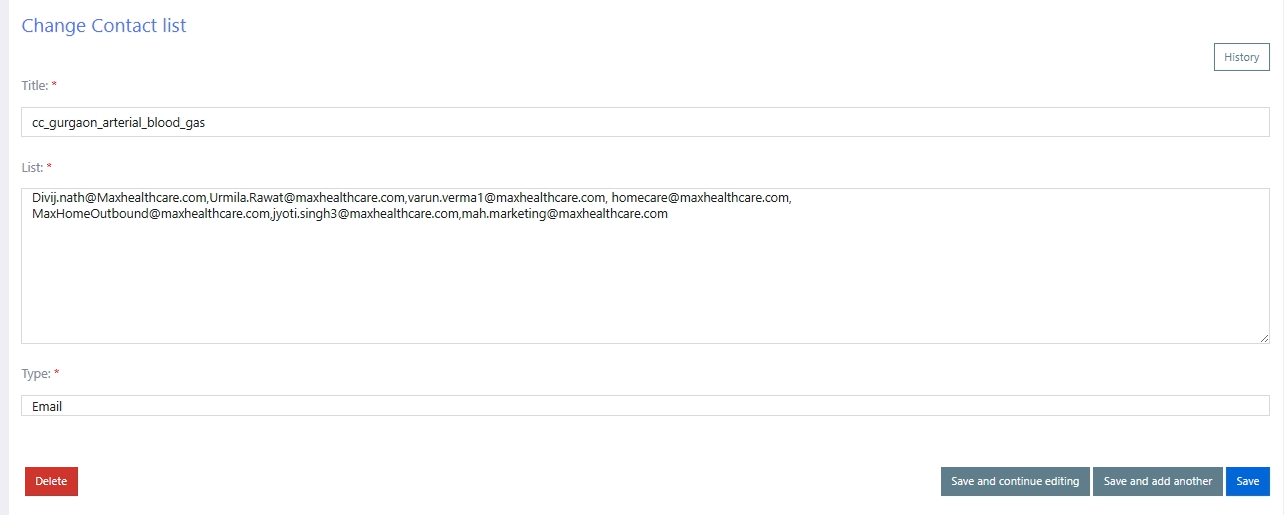
Once configured, the Contact List will appear as shown in the screenshot below.

Did you find it helpful?