How to check contact details using Filtered Actions
You can view and retrieve contact details using the Filtered Actions option in TxDialer.
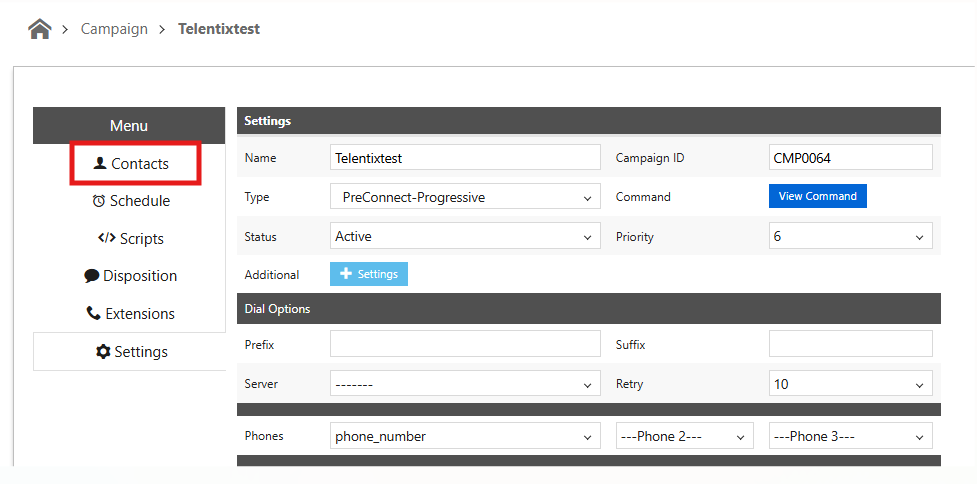
2. Open the required Campaign.
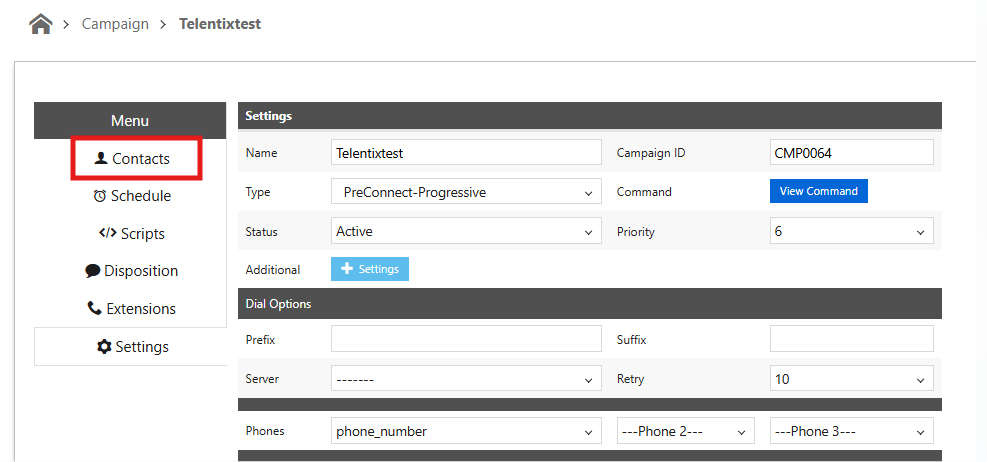
3. Go to the Contacts tab.
4. Click on Filtered Actions.
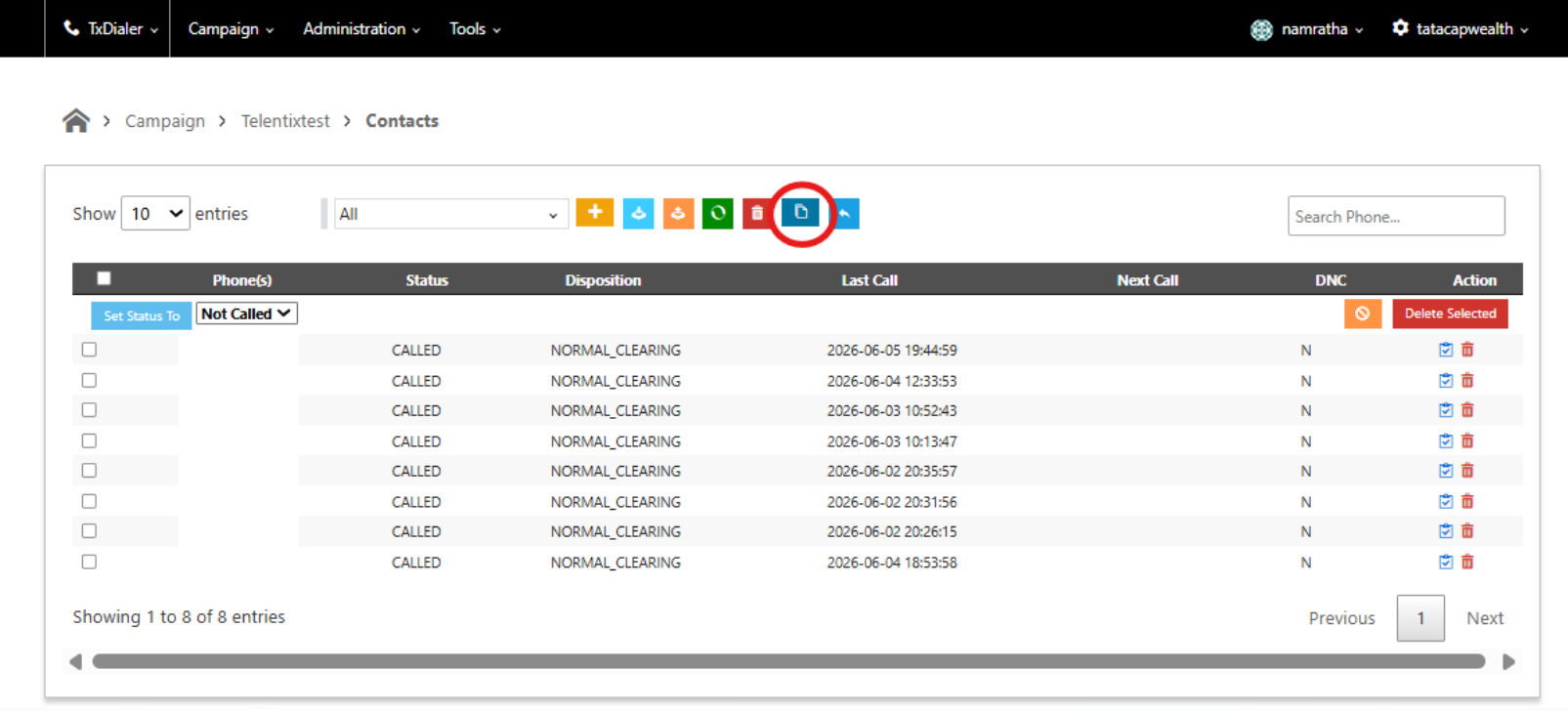
5. Apply the required filters based on your requirement.
To view the contacts assigned to a specific agent
1. Go to the required Campaign.
2. Navigate to Contacts → Filtered Actions.
3. Select the required Status such as Called, Not Called, or All.
4. Select the required Batch and Disposition details.
5. Under Advanced Settings, select the following:
Field: Preferred Agent
Type: Number
Operation: =
Value: Enter the required Agent ID
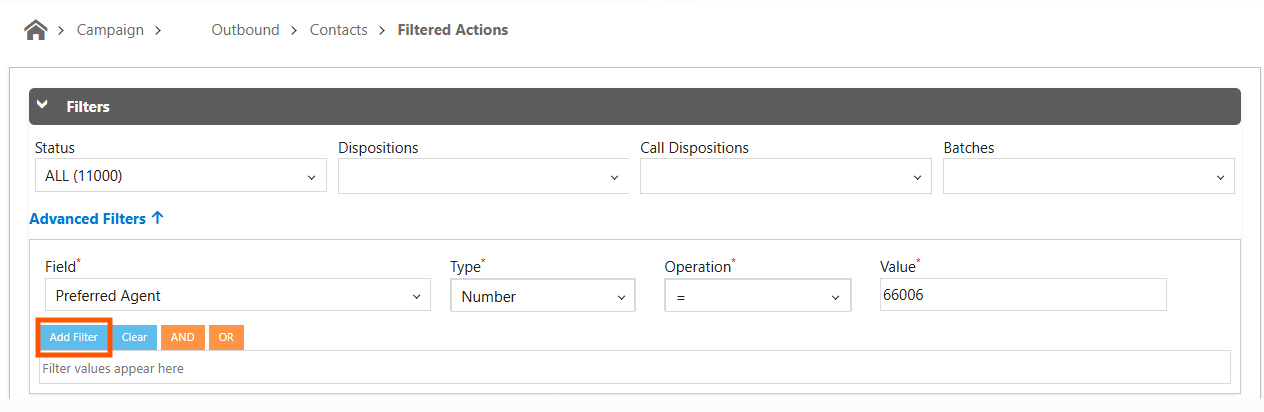
6. Click Add Filter.
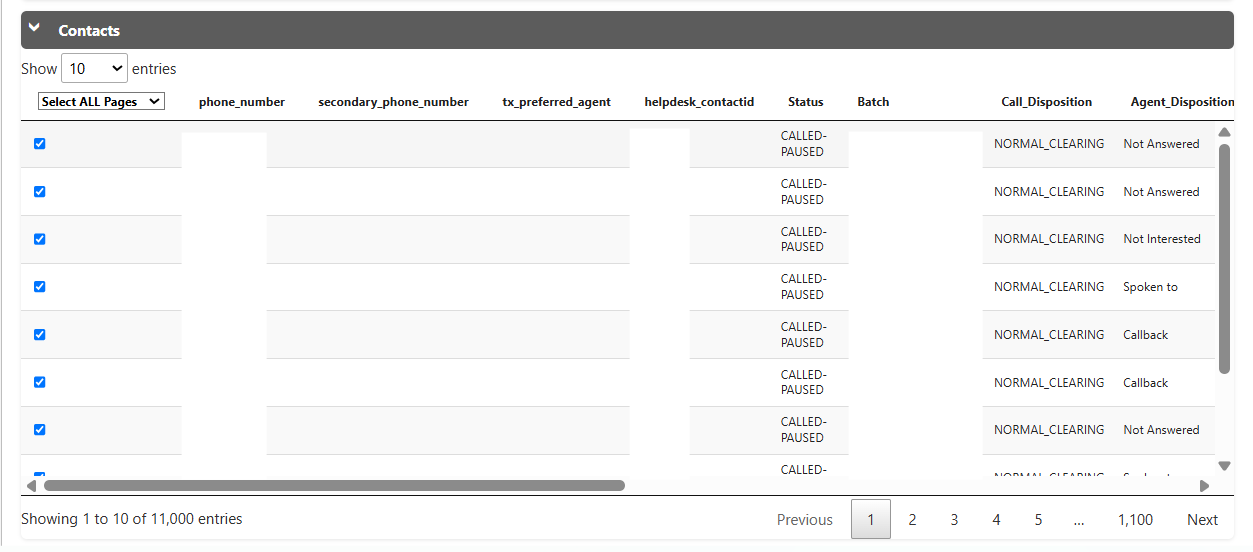
7. The filtered results will display all contacts matching the selected criteria, along with their relevant details.
Export Filtered Data :
If required, you can export the filtered contact data for further tracking and analysis:
1. Select Select All Pages to select all the filtered records across all pages.2. Click the Actions tab.
3. Select Export Plus.

4. The filtered data will be exported for further tracking and analysis.
Did you find it helpful?