TxHelpdesk

  • Login
  • Submit a Ticket
  • Knowledge Base
© 2026 TxHelpdesk
Knowledge Base
  • Knowledge Base
  • Chirp
  • How to add contacts in A…
How to add contacts in Agent Workspace of Chirp Application ?
0 recommendations  | 47 views

Steps to add contacts in the Agent Workspace (Chirp):

- Log in to Chirp.
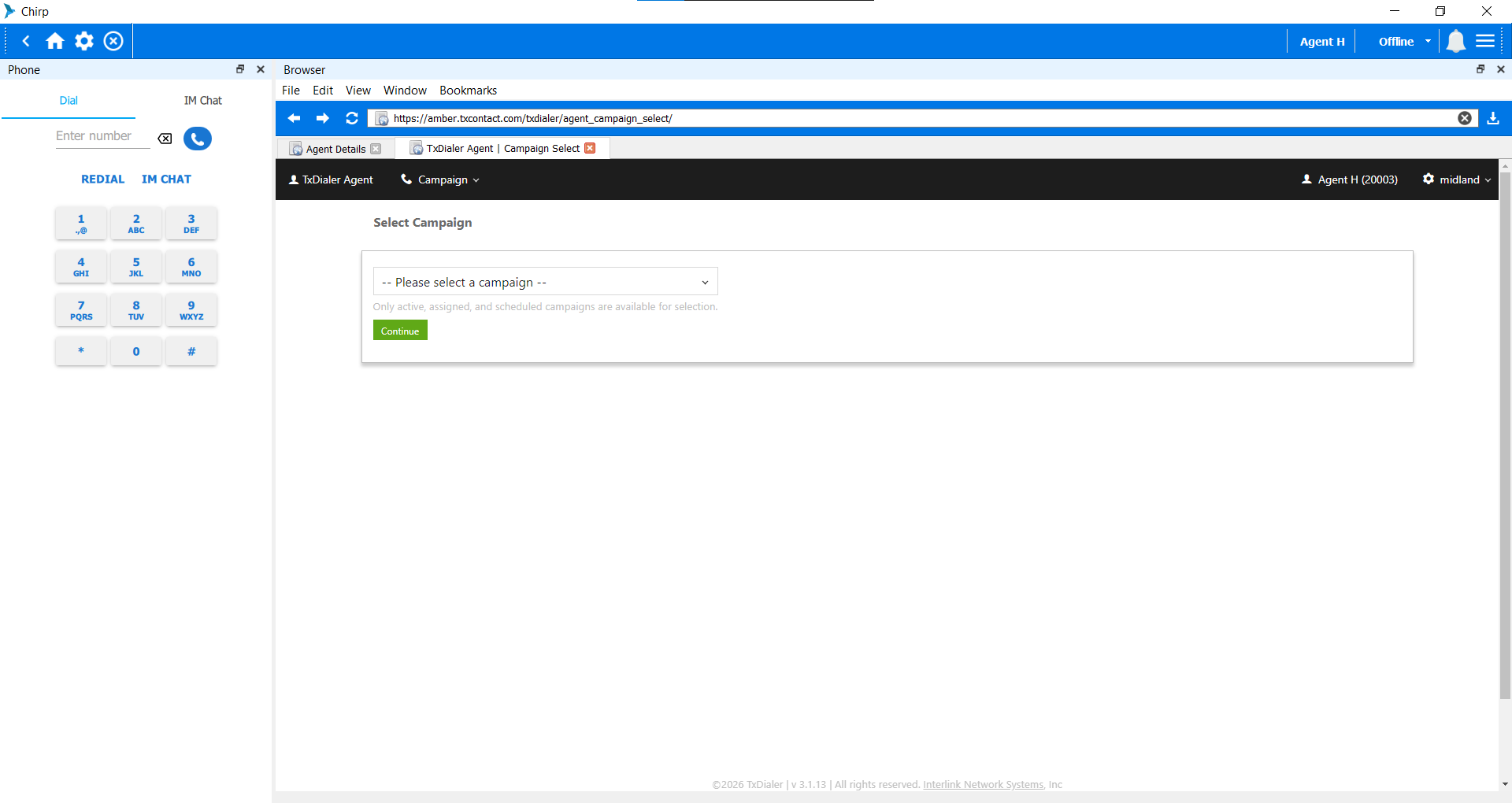
- Go to the Select Campaign page. 
- Select the required campaign and click Continue.  


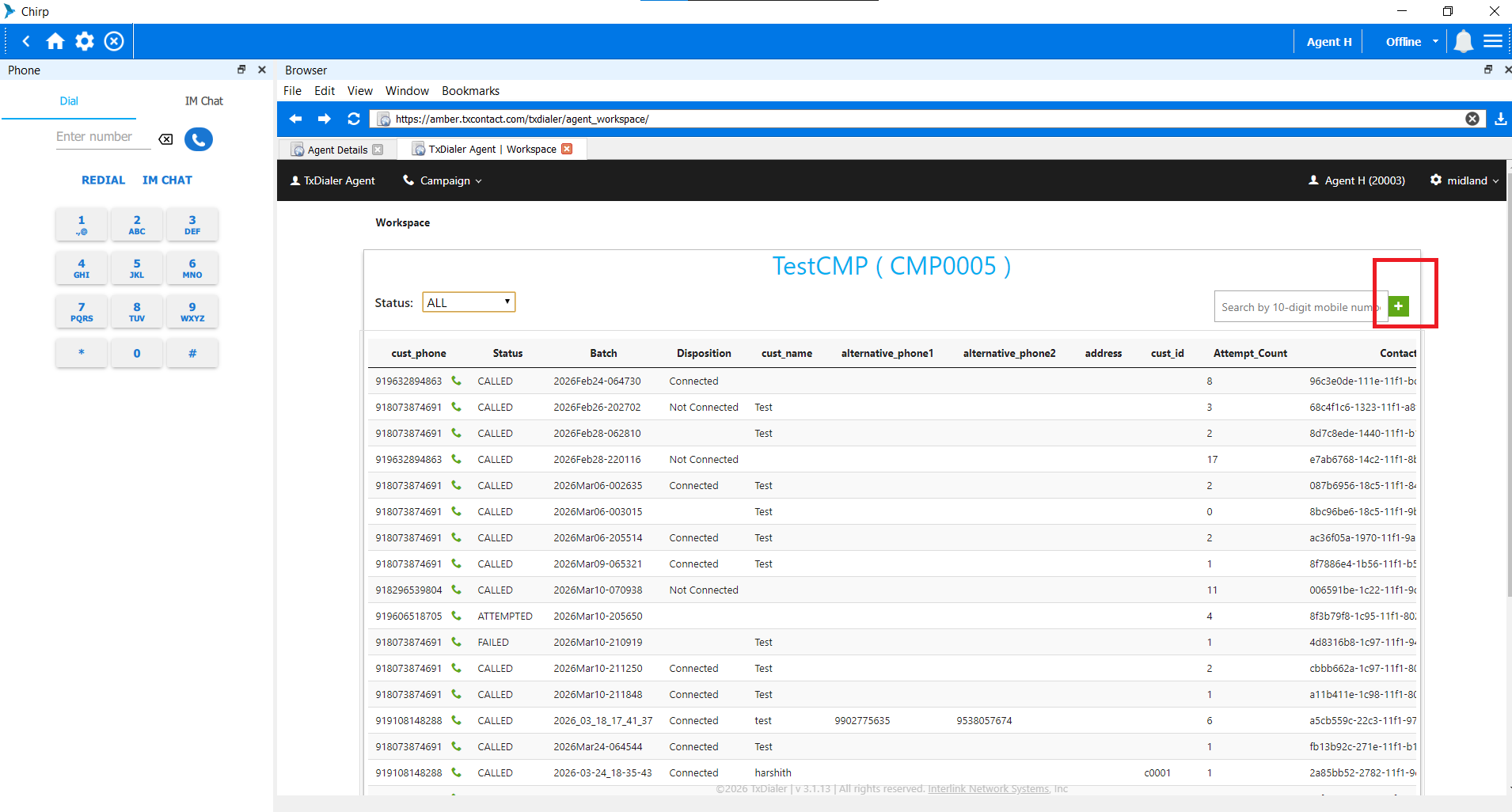
- Click the green icon - Add Contact option next to the search option.


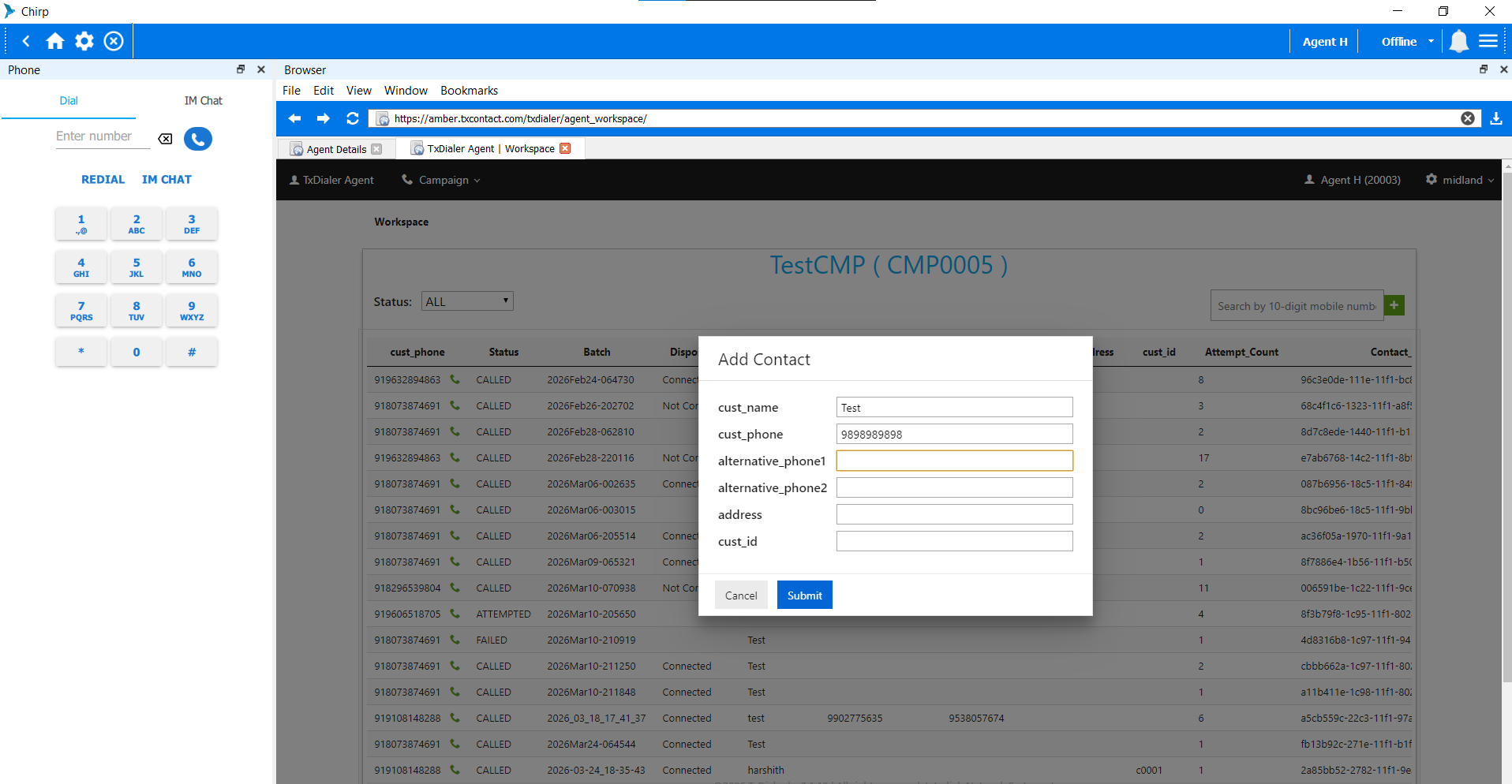
- Add the contact number.
- Click Submit.
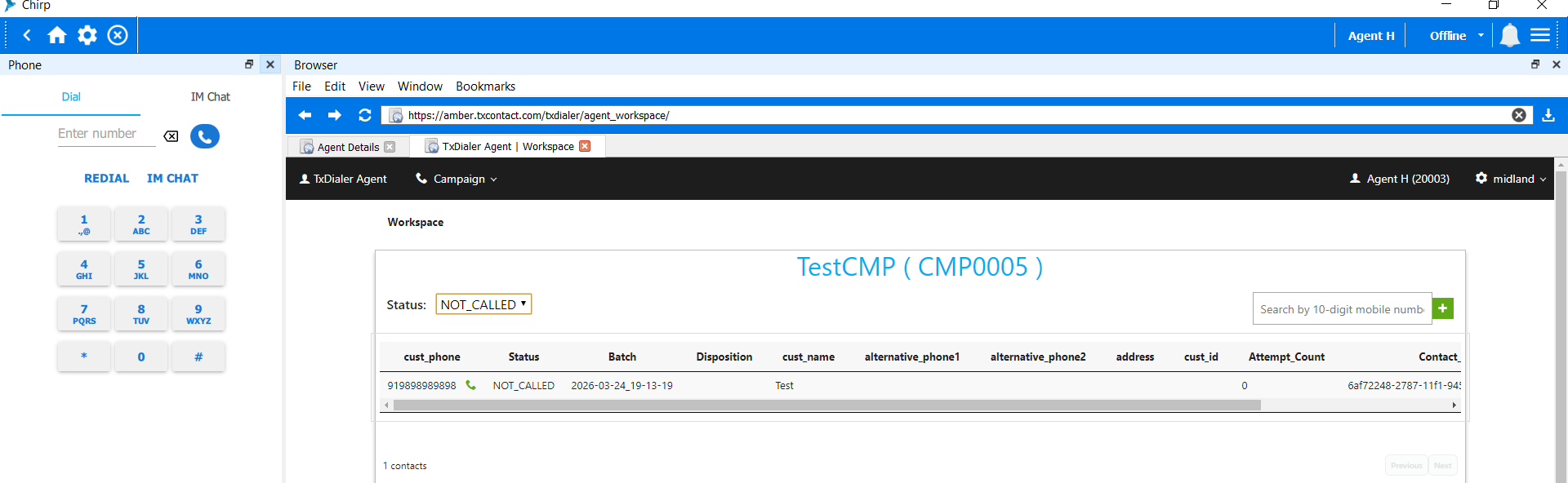
- The page will refresh, and the contact will appear under the status "Not Called" if it meets all validation criteria(DNC, Duplicates, etc). If the validation criteria are not met, the contact will appear under status "All".


- The agent can then use Click-to-Call to initiate the call.

This confirms that the contact is successfully added to the selected campaign.


Did you find it helpful?
Share
Other Chirp Articles
  • SSL Error encountered during Chirp login? Re…
  • How to install Chirp on Debian OS ?
  • Audio Codec Order and Info
  • How to install Chirp on Ubuntu OS ?
  • How to do live barge-in?
Categories
  • C - Tools
  • Chirp
  • CRM Integrations
  • General
  • Headset troubleshooting
  • TxChat
  • TxContact App
  • TxDialer
  • TxHelpdesk
  • TxRecord
  • TxReport
  • TxScreenCapture
  • TxSmartQ
  • TxTalk
  • TxTalk Web
  • User Manual