How To Achive Callback / Self Callback ?
In the TxContact setup, we also provide callback (follow-up) and self-callback features. These allow users to schedule a contact for a callback at a later time, as well as set self-callbacks where the agent can manually dial the call at the scheduled time.
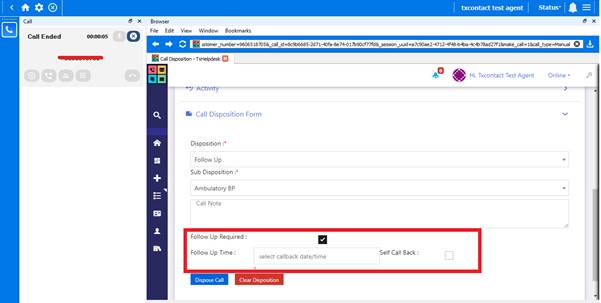
Callback (Follow-up):
To achieve this, on the screen pop-up or disposition page, while disposing the call, if a follow-up is required, you need to enable the Follow-up Required checkbox and select the preferred date and time as per your requirement. Once scheduled, the callback will be added to the relevant campaign based on the queue mapping.
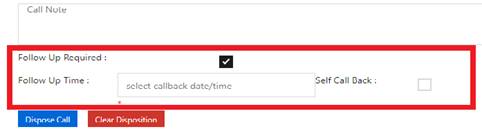
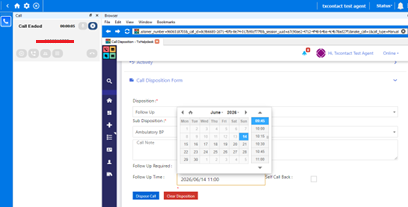
Self-Callback:
Similar to Follow-up, but in this case the agent manually dials the contact from the Agent Info page.
To achieve this, select the Self-Callback checkbox and click on Dispose, as shown below.
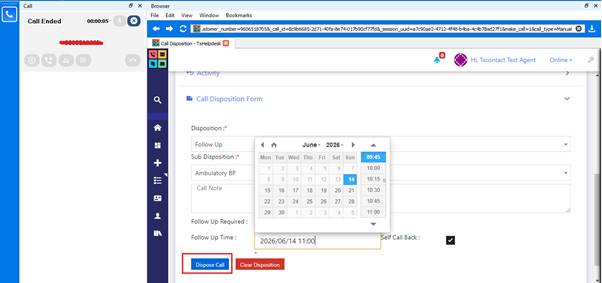
Once Disposed, the contact will be added in Callback section in the Agent Details tab as shown below.
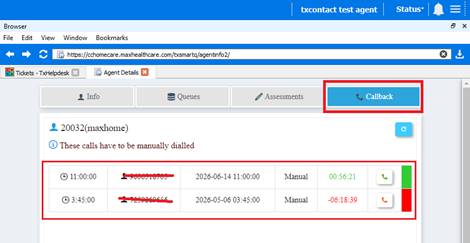
After that, clicking on the Call icon will dial the respective contact number.
If the scheduled time has been exceeded, it will be displayed in red colour; otherwise, it will be displayed in green colour.
Did you find it helpful?