How To Perform Ping Test?
Performing a Ping Test to Debug Voice Issues
Purpose
This document helps in identifying network-related issues that may affect voice quality, call connectivity, delay, or one-way/no-audio issues by performing a Ping Test between the client system and server/network destination.
When to Perform a Ping Test
Perform a ping test when users report issues such as:
Steps to Perform Ping Test (Windows)
Step 1: Open Command Prompt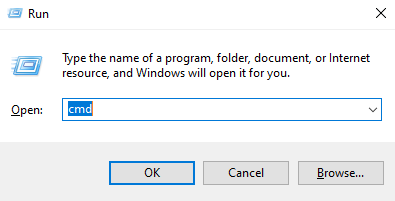
Step 2: Run Ping Command
Use the below command:
ping <Server_IP_Address> -t
Ex: ping 192.168.1.10 -t
Note: Replace <Server_IP_Address> with the relevant voice server IP.
The -t option runs the test continuously.
Step 3: Let the Test Run
Keep the ping running whenever the voice issue occurs please check the ping results.
Step 4: Stop the Test
Press Ctrl + C
How to Analyze Results
Ex:
Packets: Sent = 100, Received = 100, Lost = 0 (0% loss)
Expected Result:
Issue Indication:
If Issue is Observed
If packet loss or high latency is found:
Purpose
This document helps in identifying network-related issues that may affect voice quality, call connectivity, delay, or one-way/no-audio issues by performing a Ping Test between the client system and server/network destination.
When to Perform a Ping Test
Perform a ping test when users report issues such as:
- Call voice breaking/choppy audio
- One-way audio (agent/customer unable to hear)
- Call disconnections during conversation
- Delay in voice transmission (latency)
- Robotic or unclear voice during calls
- Calls not connecting properly due to network instability
Steps to Perform Ping Test (Windows)
Step 1: Open Command Prompt
- Press Windows + R
- Type cmd
- Click OK
Step 2: Run Ping Command
Use the below command:
ping <Server_IP_Address> -t
Ex: ping 192.168.1.10 -t
Note: Replace <Server_IP_Address> with the relevant voice server IP.
The -t option runs the test continuously.
Step 3: Let the Test Run
Keep the ping running whenever the voice issue occurs please check the ping results.
Step 4: Stop the Test
Press Ctrl + C
How to Analyze Results
Ex:
Packets: Sent = 100, Received = 100, Lost = 0 (0% loss)
Expected Result:
- Packet loss should be 0%
Issue Indication:
- Network interruption
- Firewall blocking packets
- Unstable ISP connection
- Temporary loss of connectivity
If Issue is Observed
If packet loss or high latency is found:
- Check local internet/network stability
- Verify LAN cable or Wi-Fi connection
- Check firewall or antivirus restrictions
- Contact network/IT team to inspect routing issues
- Test from another system/network for comparison
Did you find it helpful?