Troubleshooting Microphone and Audio Device Issues in Chirp
Overview
If you are experiencing audio issues in Chirp, such as the microphone not working, callers being unable to hear you, or audio devices not being detected, follow the steps below to verify your audio configuration and hardware.
Step 1: Verify Audio Device Settings in Chirp
- Log in to Chirp.
- Click the Settings (Gear) icon located in the top-left corner.
- Open the Basic Settings page.
- Verify the following:
- Playback Device is set to the correct speaker or headset.
- Capture Device is set to the correct microphone or headset microphone.
- Save the settings if any changes are made.
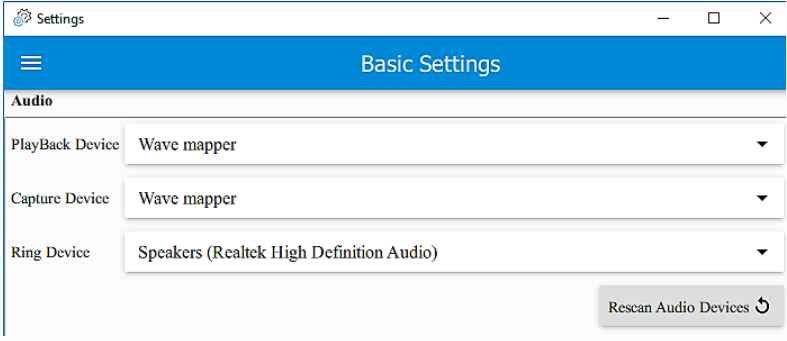
Example
- Playback Device: USB Headset Speaker
- Capture Device: USB Headset Microphone
Ensure both devices correspond to the headset or audio device you intend to use.
Note: After unplugging and plugging the audio device, please restart Chirp to ensure the changes take effect.
Step 2: Verify Windows Microphone Permissions
If you are using Windows:
- Open Settings.
- Navigate to:
- Privacy & Security → Microphone
- (On older Windows versions: Privacy → Microphone)
-
Ensure the following setting is enabled:
Let apps access your microphone = ON

- If available, also verify:
- Allow desktop apps to access your microphone = ON
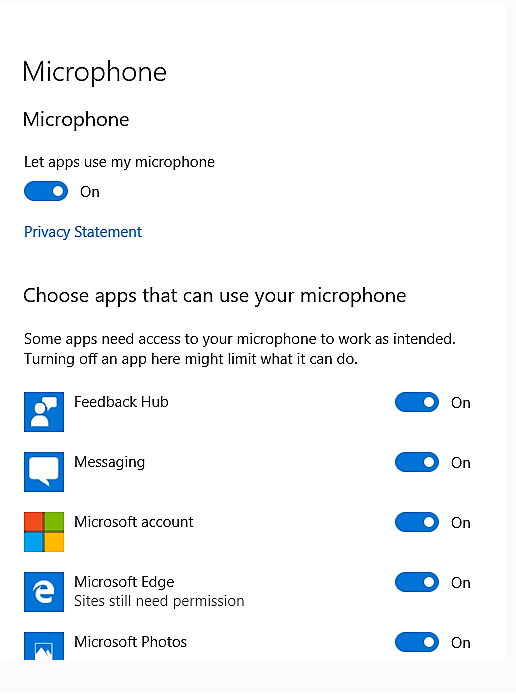
- Allow desktop apps to access your microphone = ON
These settings allow Chirp and supported browsers to use the microphone.
Step 3: Test Your Audio Device
To verify whether the microphone and speakers are functioning properly, test the device using an online audio testing tool.
Microphone Test
Use the following website:
Steps
- Open the website.
- Click Play or allow microphone access when prompted.
- Speak into the microphone.
- Confirm that sound waves or microphone activity are displayed.
Step 4: Check Headset Hardware
If the microphone test fails:
- Disconnect and reconnect the headset.
- Try a different USB port.
- Test the headset on another application or device.
- Restart the browser and Chirp.
- If the issue persists, replace the headset with a known working device and test again.