How to fix Chirp Account Enable Issue
Overview
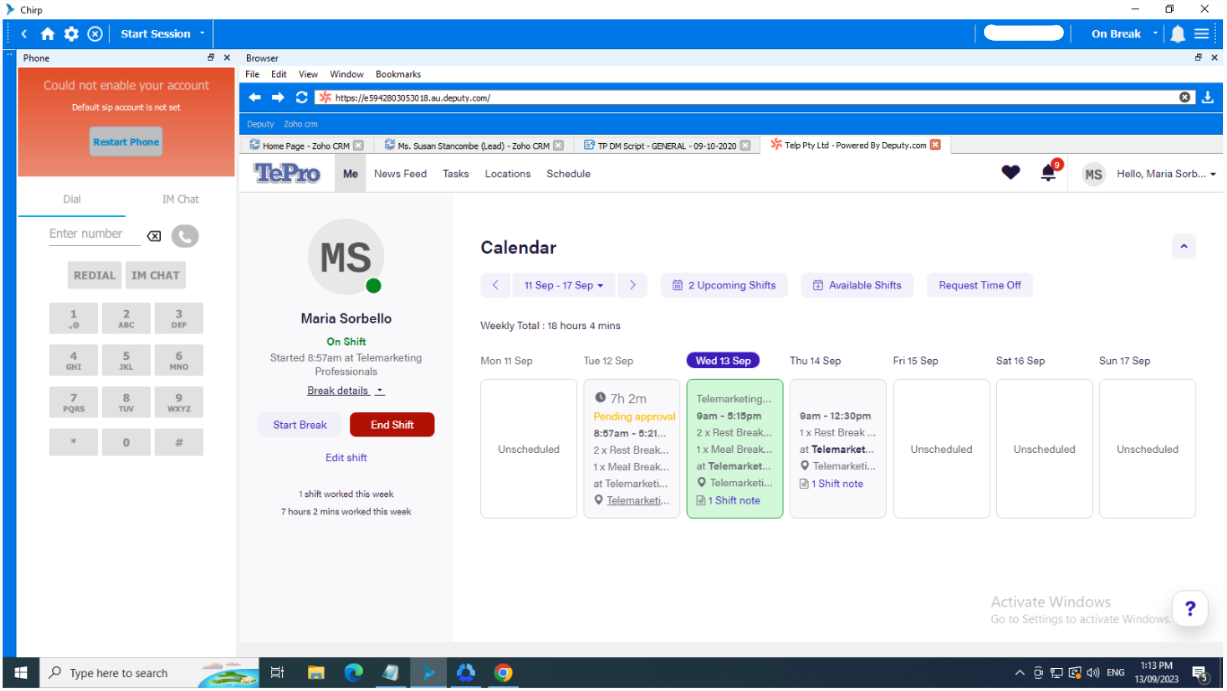
Agents may encounter the error "Could not enable your account" in Chirp or experience unexpected logoffs. This can occur if the system enters sleep mode, causing Chirp registration to time out.
Symptoms
- "Could not enable your account" message appears in Chirp.
- Agent is automatically logged off.
- Chirp becomes unresponsive after the system wakes from sleep mode.
Cause
When the system enters sleep mode, Chirp may lose its registration with the server, resulting in a registration timeout and automatic logoff.
Resolution
To prevent the issue from recurring, configure the system to remain awake.
- Click the Windows icon and open Settings.
- Select System.
- Click Power & Sleep.
- Under Screen and Sleep, set all options to Never.
- Click Home or close Settings to save the changes.
Verification
After updating the power settings:
- Restart Chirp.
- Log in again.
- Verify that the account enables successfully and remains connected without unexpected logoffs.
Did you find it helpful?