How to retrieve Chirp Log File
Chirp log file help us investigate the issue, first change the log level to Trace, then replicate the issue and share the generated log file.
Steps to get the Log File
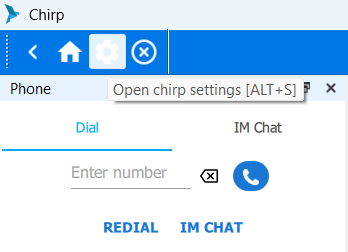
Step 1: Click Settings (Gear icon).
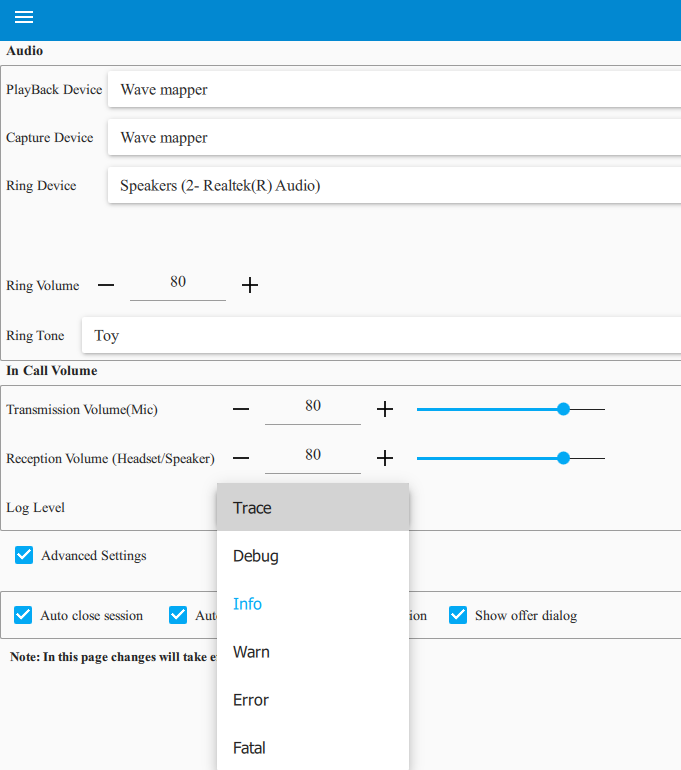
Step 2: Change the Log Level to Trace.
Step 3: Click the Menu icon (≡) in the top-right corner.
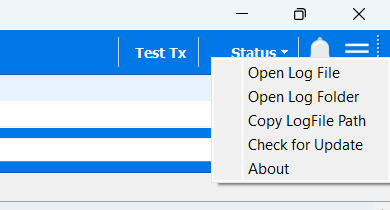
Step 4: From the available options, choose one of the following to access the log file:
- Open Log File – Opens the current log file directly.
- Open Log Folder – Opens the folder containing the log files. The logs are organized into folders by date. Open the folder corresponding to the date when the issue occurred, locate the relevant log file, and share.
- Copy Log File Path – Copies the log file location to your clipboard.
Did you find it helpful?