How to Troubleshoot Agents Not Receiving Calls
Follow the troubleshooting steps below if an agent is not receiving calls.
1. Verify Agent Login and Status
- Check whether the agent is logged in to Chirp.
- Ensure the agent is in the Ready for Call state.
- Verify the agent's status from:
- Agent System or Agent Dashboard.
Agent Dashboard link : https://amber.txcontact.com/txsmartq/dashboard/agents/
- Agent System or Agent Dashboard.
2. Verify Queue Assignment
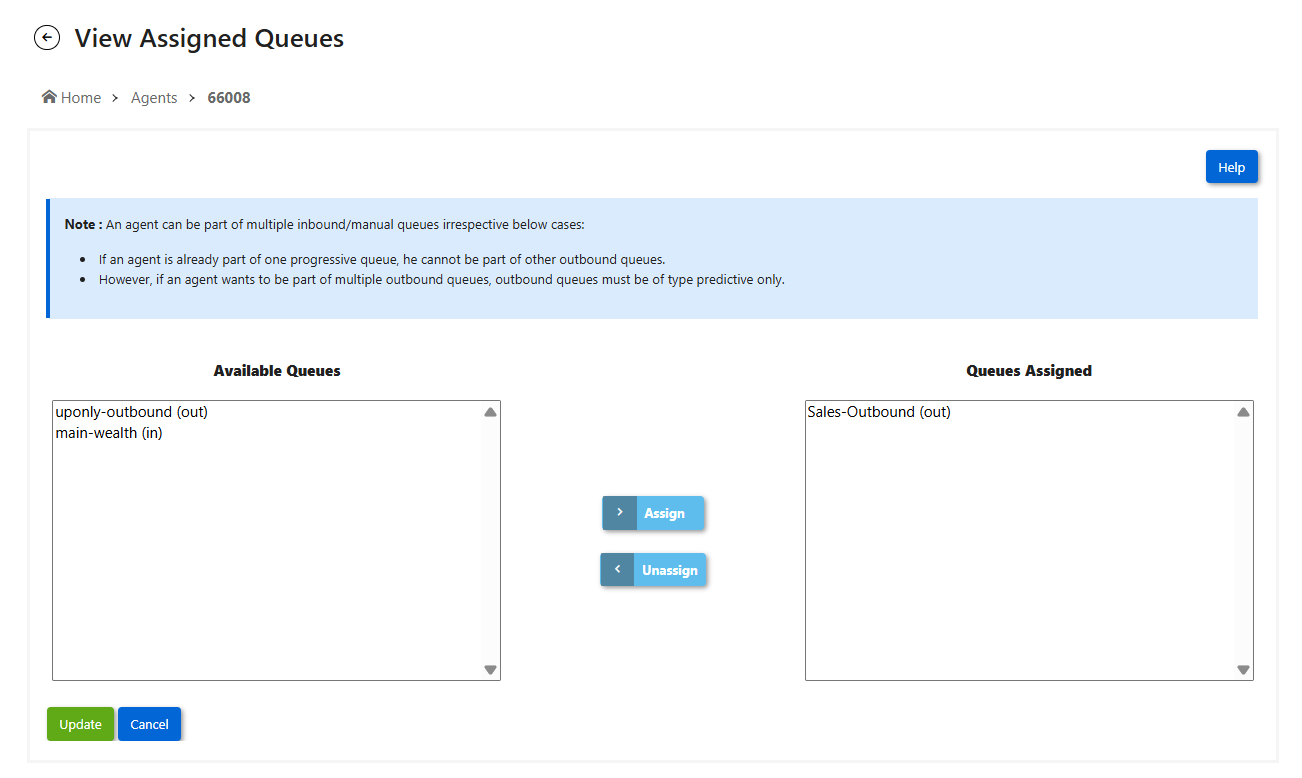
- Ensure the agent is assigned to the queue.
- Navigate to:
- TxSmartQ → Contact Center → Agents → Add/Remove Queues
- TxSmartQ → Contact Center → Agents → Add/Remove Queues
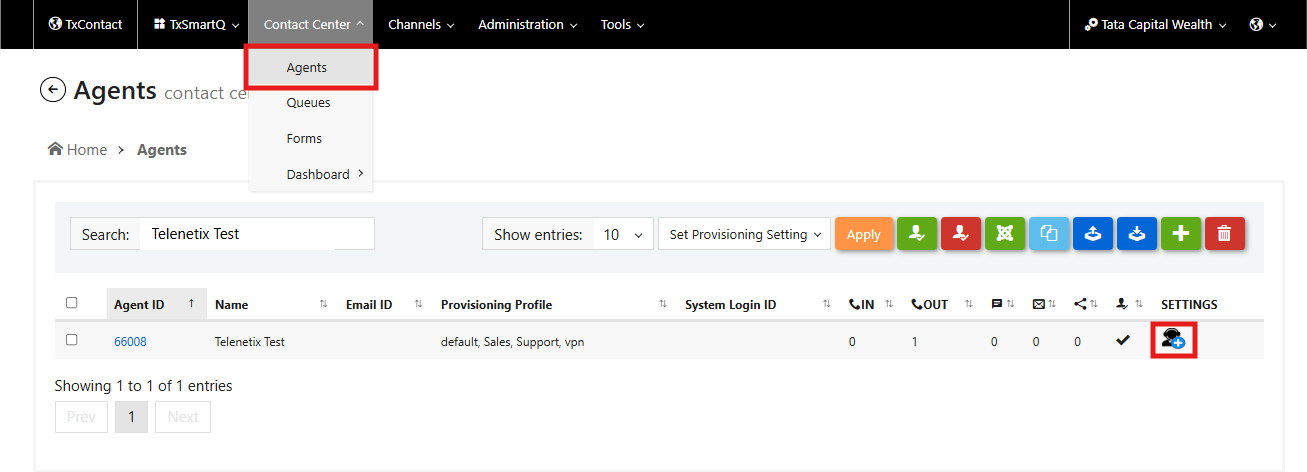
- Verify that the required queue is assigned to the agent.
3. Verify Campaign Configuration
- Navigate to:
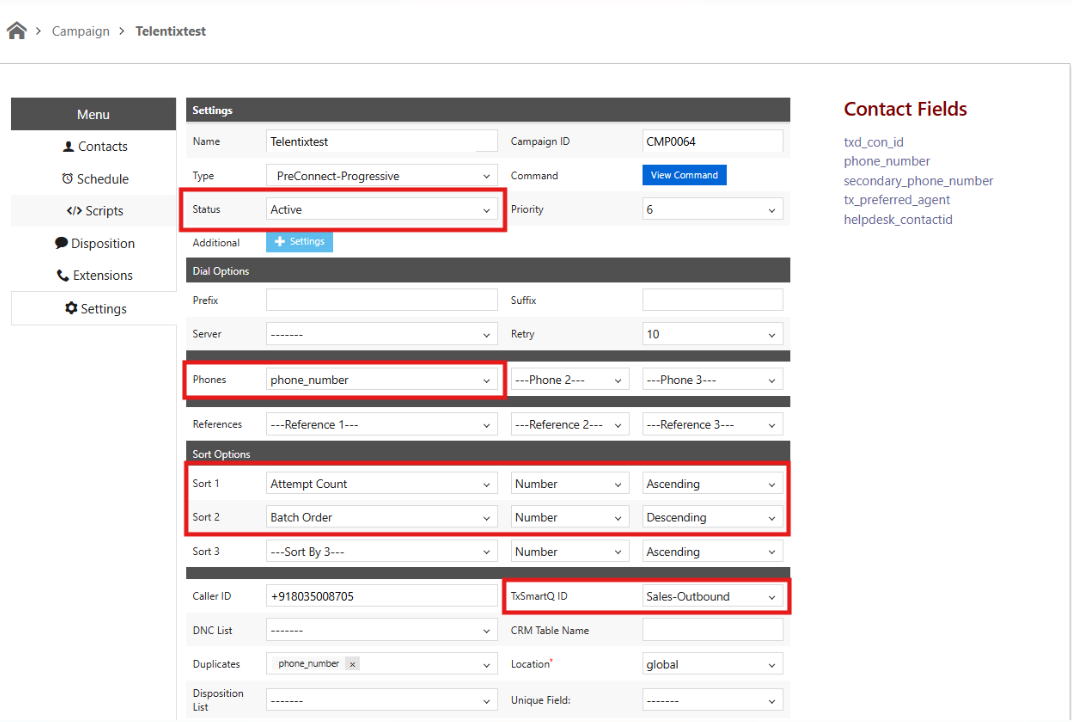
- TxDialer → Campaign → Settings
- Verify the following:
- Campaign status is Active.
- The correct SmartQ ID (Queue) is selected.
- The Phone Number Field is configured correctly.
- The required Sort Order is selected.
4. Verify Campaign Schedule
- Navigate to:
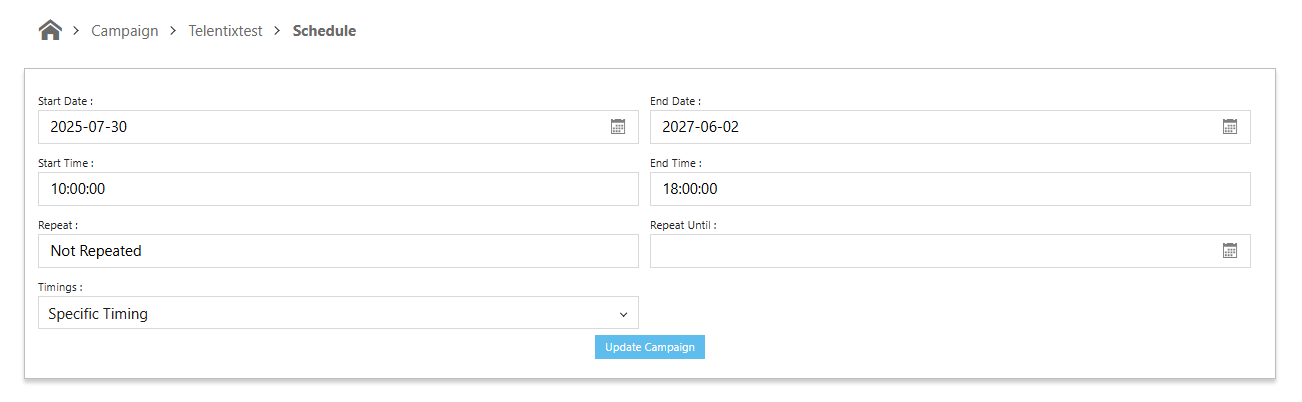
- TxDialer → Campaign → Schedule
- Ensure:
- The campaign schedule is Active.
- The current time falls within the configured campaign schedule.
5. Verify Batch Status
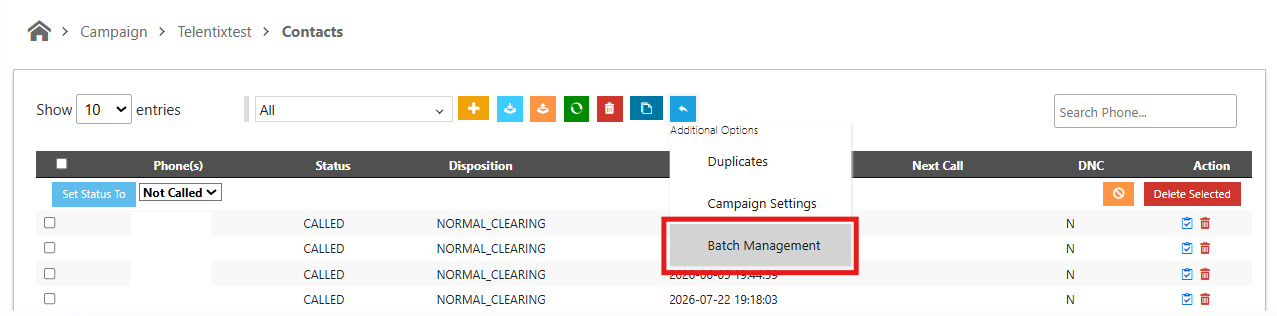
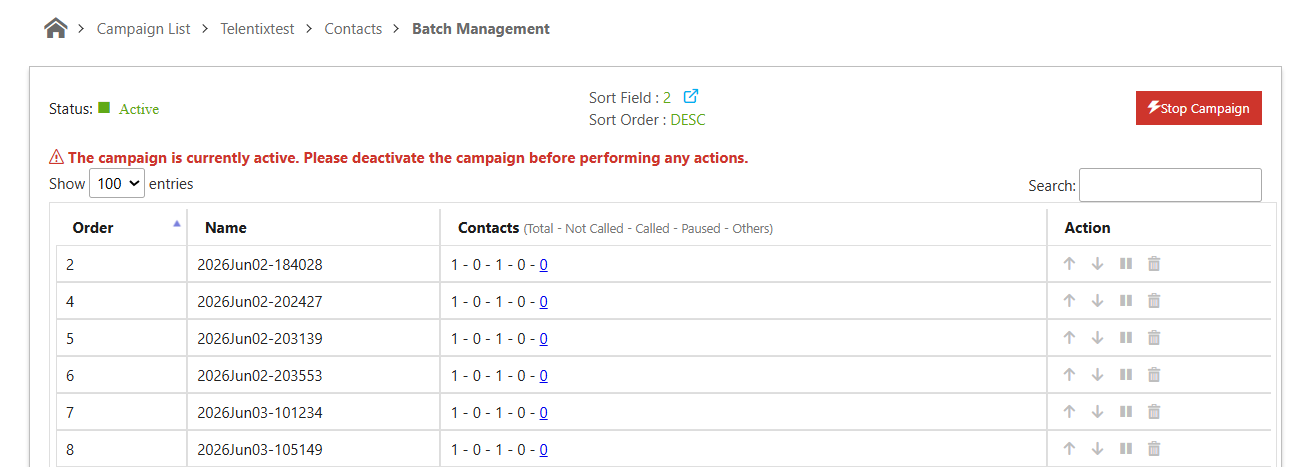
- Navigate to:
- TxDialer → Campaign → Contacts → Additional Options → Batch Management
- Verify that the respective batch is in the Active state.
6. Verify Contact Status Using Report
- Open TxReport and review the relevant campaign reports.
- Check the following contact counts:
- Not Called Count
- Loaded Count
- Paused Count
- Next Call Elapsed Count
- Next Call Not Elapsed Count
This reports help determine whether contacts are being dialed and provide insight into the current contact status.
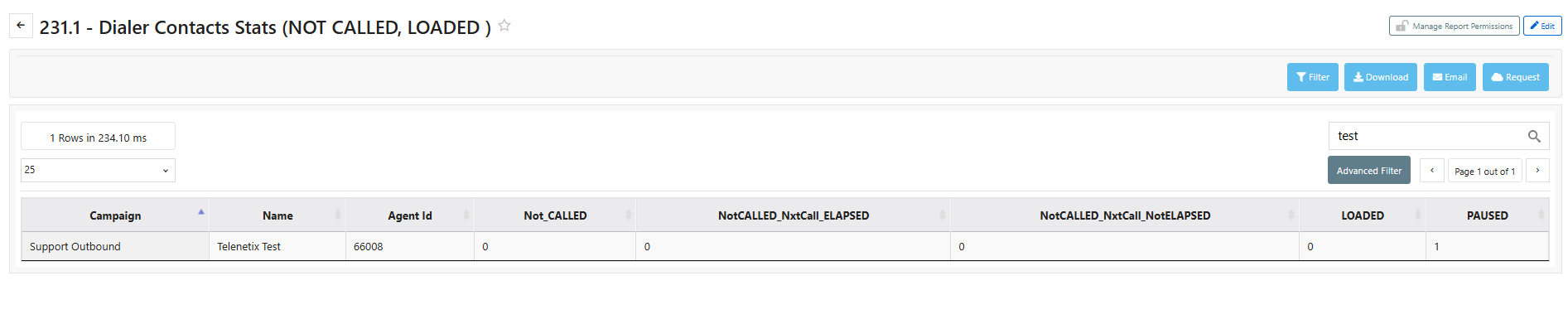
Report link : https://amber.txcontact.com/txreport/reports/view/1767704329/
7. Verify Recently Dialed Contacts
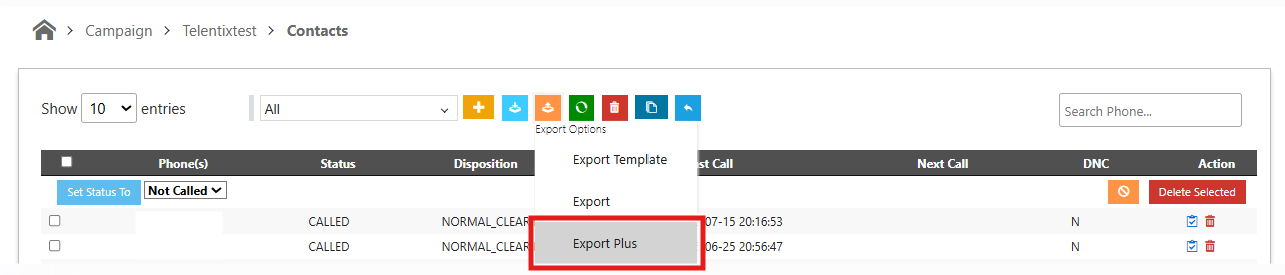
- Navigate to:
- TxDialer → Campaign → Contacts → Export → Export Plus
- Download the Export Plus Report.
- Refer to the Last Called column to identify the most recently dialed contacts.
- You can also refer to the Dialer Call Report to verify the latest dialed calls.
Report link : https://amber.txcontact.com/txreport/reports/view/1720190827/
8. Verify Contact Details Using Filtered Actions
- Navigate to:
- TxDialer → Campaign → Filtered Actions
- Apply the required filters based on your requirement.
Example:
To view Not Called contacts assigned to a specific agent:
- Got to the required campaign and filtered action.
- Apply the following filters as shown in screenshot:
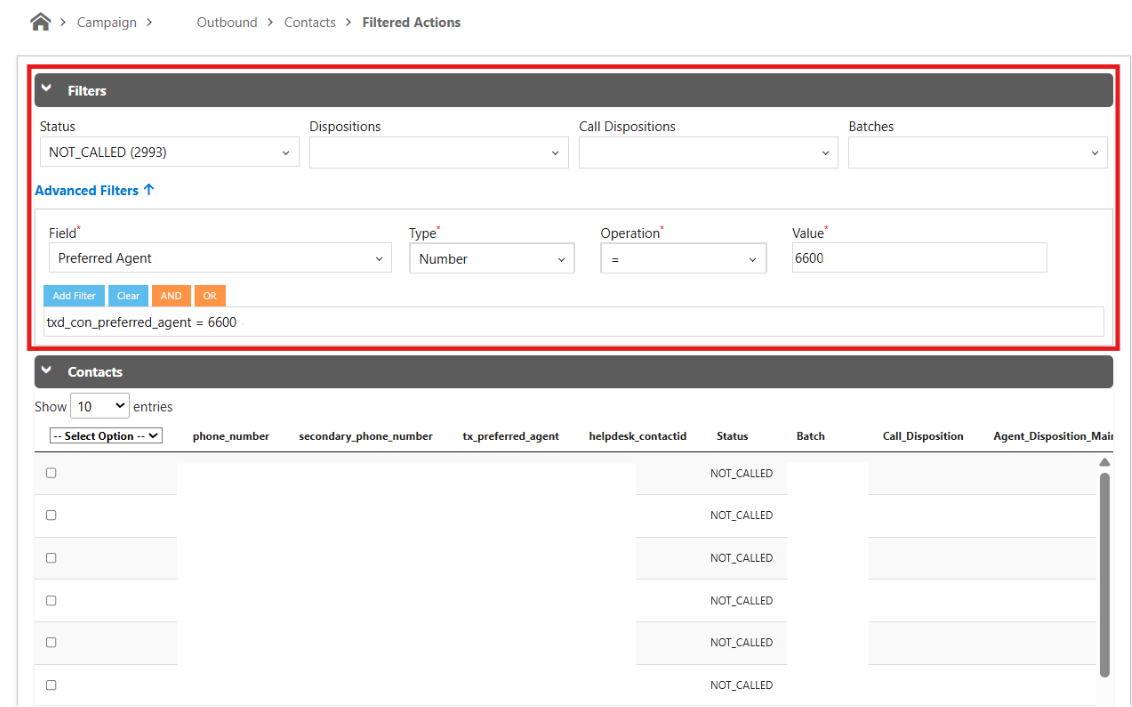
- The filtered results will display all matching contacts along with their details.
If required, you can export the filtered data by:
- Selecting the desired entries.
- Clicking Actions → Export Plus

Did you find it helpful?