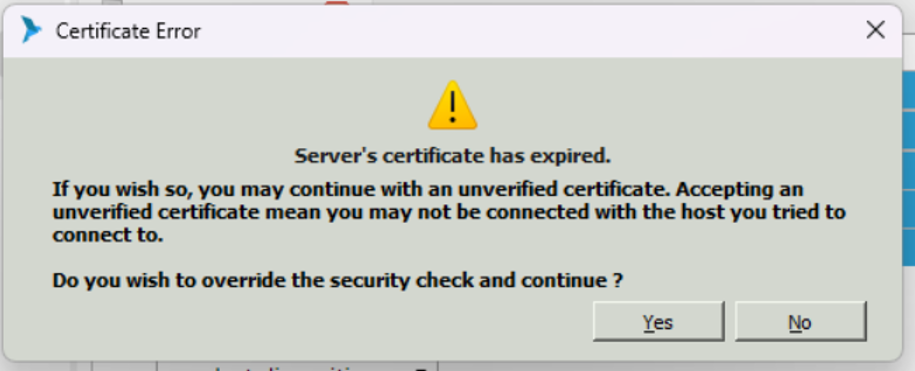
How to update chirp Certificate. How to Fix “Certificate Error” / “Server’s Certificate Has Expired” popup in chirp
1. Purpose
This KB explains how to update the Chirp certificate whenever the Certificate Expired dialog box appears in Chirp.
2. Procedure
Step 1: Download the Certificate
-
Download the updated certificate file from the link below.
https://s3.amazonaws.com/ftp.ilinknet.com/TxContact/txtalklocalssl.info.crt
Step 2: Navigate to the Certificate Folder
-
Open File Explorer.
-
Navigate to the following path:
C:\Program Files\Interlink Network Systems\Chirp\certificate
Step 3: Back Up the Existing Certificate
-
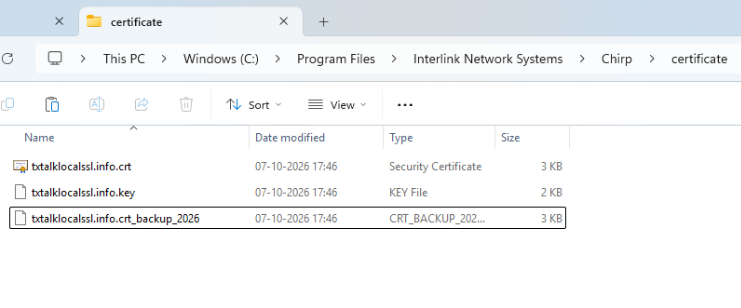
Locate the existing file named
txtalklocalssl.info.crt. -
Rename the file to
txtalklocalssl.info.crt_backup_2026or another appropriate backup name.
Step 4: Replace the Certificate
-
Copy the updated certificate file downloaded from the above-mentioned link.
-
Paste it into the following folder:
C:\Program Files\Interlink Network Systems\Chirp\certificate
-
Ensure that the updated certificate retains the original filename:
txtalklocalssl.info.crt.
Step 5: Verify the Certificate
-
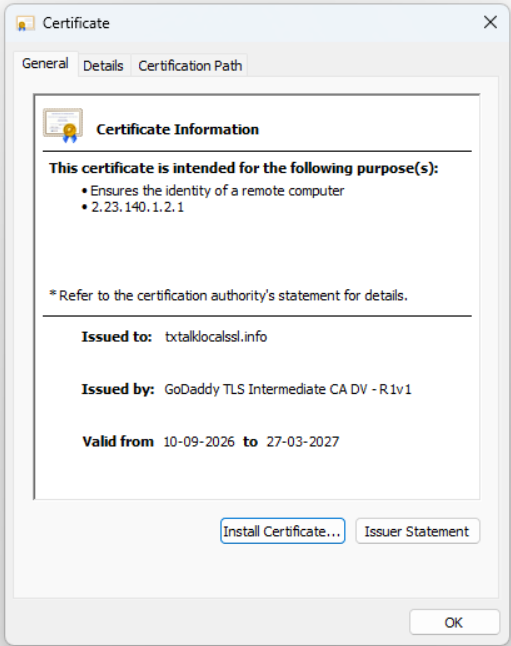
Double-click
txtalklocalssl.info.crt. -
Verify that the certificate file reflects the updated date.
Step 6: Restart Chirp
-
After replacing the certificate, completely close and restart Chirp.
-
Try logging in to Chirp again.
Step 7: Testing
-
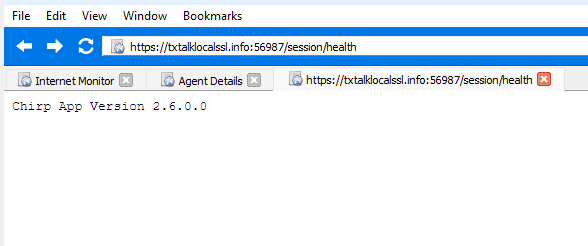
In chirp browser paste this URL
-
https://txtalklocalssl.info:56987/session/health
-
If everything was done right, You should not see the certificate error here.
3. Additional Troubleshooting
If the same behaviour persists after updating the certificate and restarting Chirp, clear the Chirp internal browser cache by following the steps in the KB below:
Reference KB: How to Clear the Chirp Internal Browser Cache
After clearing the cache, restart Chirp and try logging in again.