How to trouble shoot if click to call is not working in Tepro
Overview
This knowledge base article provides the steps to troubleshoot Click-to-Call issues in Tepro. One of the common reasons for Click-to-Call not functioning is that the required Zoho Plugin is not installed or enabled in the Chirp application on the agent's system. Another possible cause is an incorrect CRM user mapping configuration.Troubleshoot 1: Checking if Zoho plugin is installed in the Chirp:
- Login to the Chirp application.
- Navigate to:
- Settings (left-hand side menu)
- Plugin Manager
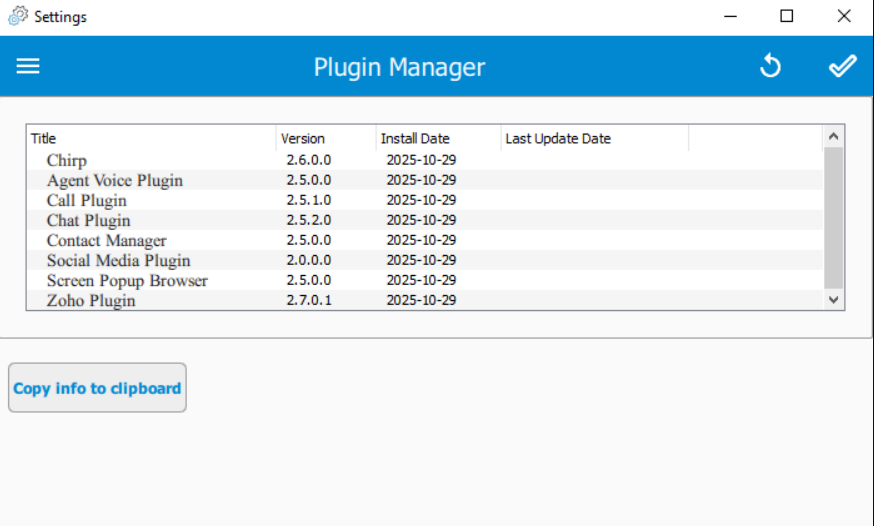
- Check whether the Zoho Plugin is listed in the installed plugins.
- If the Zoho Plugin is available in the Plugin Manager, proceed with the next troubleshooting step.
- If the Zoho Plugin is not listed:
- Uninstall the Chirp application.
- Reinstall Chirp by following the Chirp Installation KB.
- During installation, ensure that the Zoho Plugin option is selected.
- Complete the installation and launch Chirp.
- Navigate to Settings → Plugin Manager and verify that the Zoho Plugin is now visible.
- Test the Click-to-Call functionality and confirm whether the issue is resolved.
Troubleshoot 2: CRM Integration Module
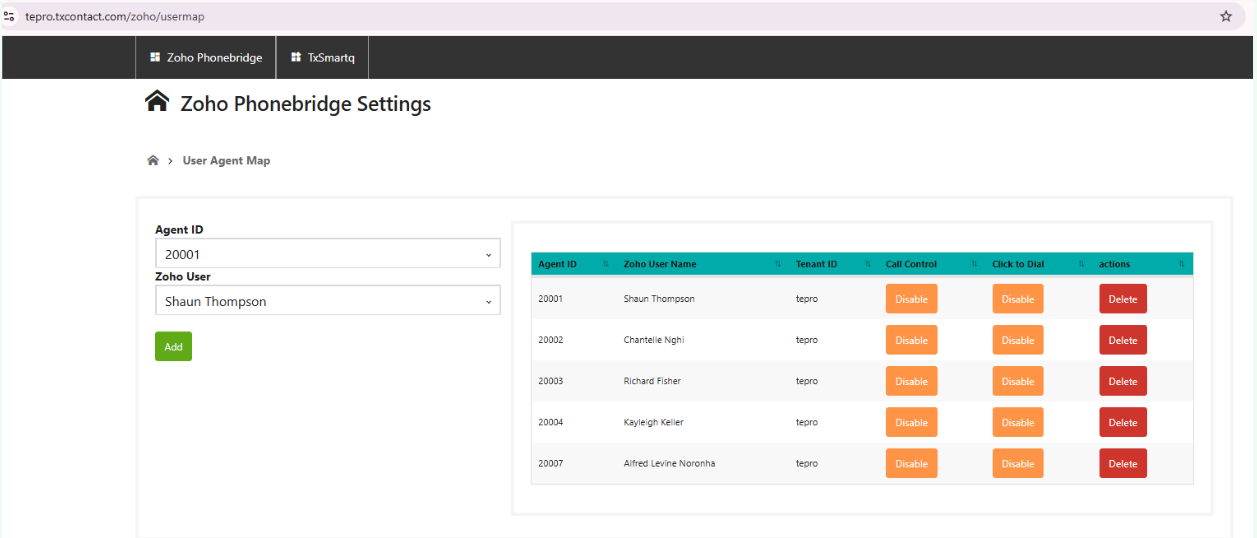
Step 1: Verify User Mapping Details
- Navigate to the Integration/User Mapping section.
- Compare the values displayed in the User Selection dropdown with the mapped user details displayed on the right-hand side.
- Verify the following fields:
- User Name
- Agent ID
- CRM Username
- Any other mapped identifiers
- Ensure that all values match exactly, including:
- Spelling
- Capitalization
- Spaces
Step 2: Recreate User Mappings (If Required)
If any mismatch is identified:
- Delete the affected user mapping.
- Recreate the user mapping using the correct details.
- Save the configuration.
- Test the Click-to-Call functionality again.
Step 3: Recreate All User Mappings
If no mismatch is found and the issue persists:
- Navigate to the Integration User Management page.
- Under Actions, delete all existing user mappings.
- Recreate all users and mappings from scratch.
- Save the changes.
- Test the Click-to-Call functionality again.
Validation
After recreating the mappings:
- Verify that all users are mapped correctly.
- Initiate a Click-to-Call action from the CRM.
- Confirm that the call is successfully triggered in Chirp.
- Verify that CRM and Chirp synchronization functions are operating as expected.
Troubleshoot 3: Disabling Chrome Browser Restriction
KB article link:
Did you find it helpful?