How to Generate Zoho Refresh Token?
Note: For transcription to work for a perticular agent, His Refresh Token must be configured on the Agent Edit page.
To generate the Refresh Token, you need a Client ID and Client Secret. These values must be configured for each agent on the Agent Edit page.
This Guide assumes you have already Obtained client id and client secret. If not, Please Click on the link below to know how
https://helpdesk.txcontact.com/kb/article/362-how-to-get-zoho-client-id-and-client-secret/
Once you obtain the client id, client secret using the above KB, Update that client id and client secret in the agent edit page(Only Admins) or zoho page(Only Agents) As shown below
ADMINS - (If you have admin access)
Only Admins can edit any agents client id or client secret. Come to agent edit page.
link: https://tepro.txcontact.com/txsmartq/agents/list
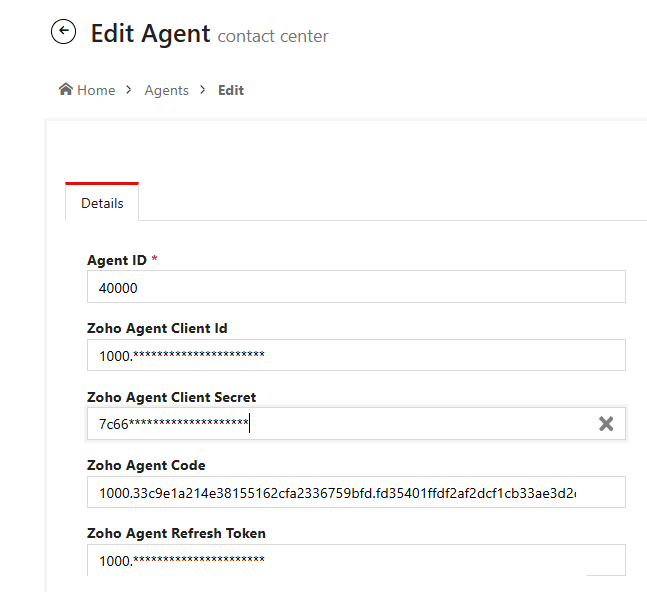
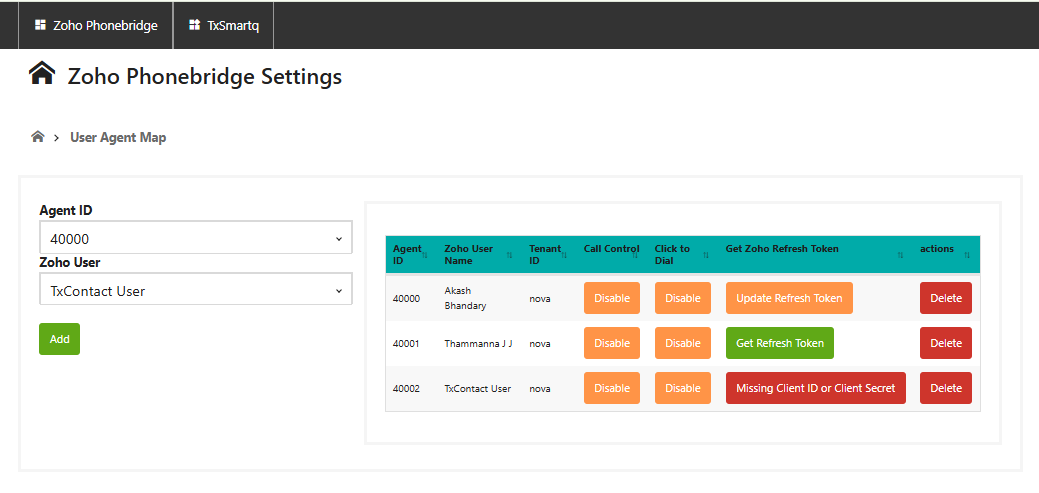
Once Client Id and Client secret is updated you can get refresh token for that particular agent. Come to Zoho Integration page and click on Get Refresh token button to get the refresh token for that agent
https://tepro.txcontact.com/zoho/usermap
Admins will see something like this
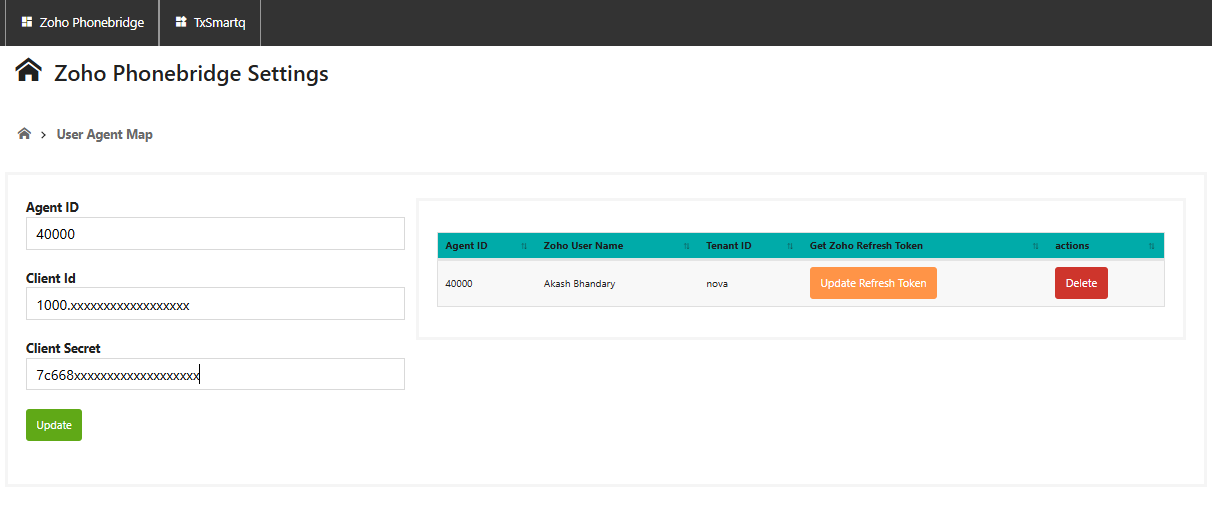
If you have only Agents login Access you will see this page
Update Client Id and Client Secret here. Agents can only update their Client Id and Client Secret
(Agents can directly login to SmartQ Page with their credentials)
You will see one of the 3 options or buttons
* Update Refresh Token (Refresh Token was already found, if the refresh token is present and you generate one more code, the current refresh token will no longer be valid. SO DON'T GENERATE ONE MORE CODE)
* Missing Client Id or Client Secret (Client ID or Client Secret is missing in the agent edit page. Fill it there first)
* Get Refresh Token (Client ID and Client Secret was found now we can generate the new code)
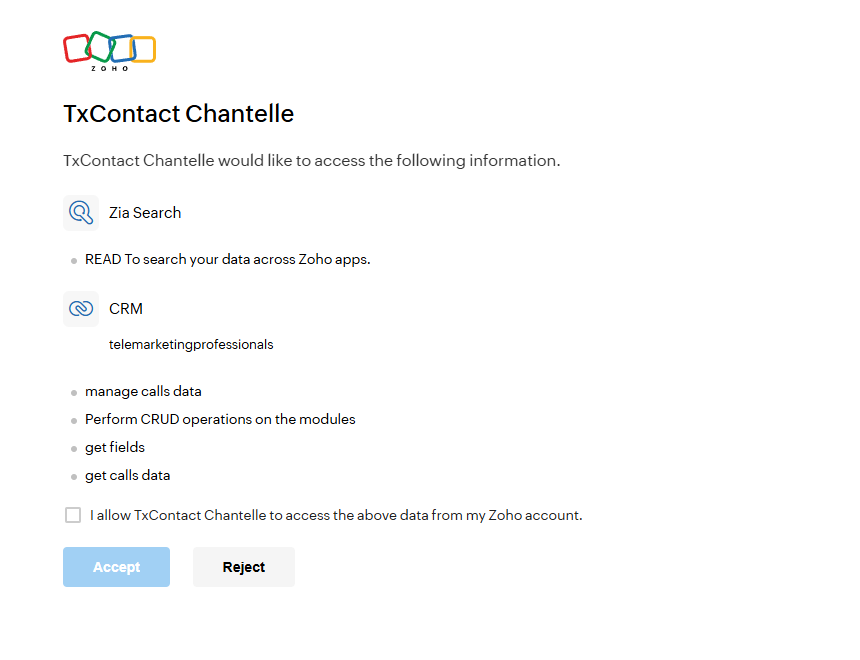
Once clicked on the button Get Refresh Token button, it will redirect you to Zoho page to obtain the refresh token
Login to your zoho account there and click on check box and click on accept
It will redirect you to one more page there you should find sucess message like this.
{"status": "success", "message": "Successfully updated the refresh token"}


If you find error message like invalid_code. then you have mentioned the wrong client_id client_secret in the agent edit page. or
{"status": "error", "message": "ZOHO ERROR: invalid_code"}
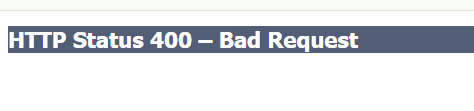
If you get some other error like this, then the provided redirect url is incorrect.
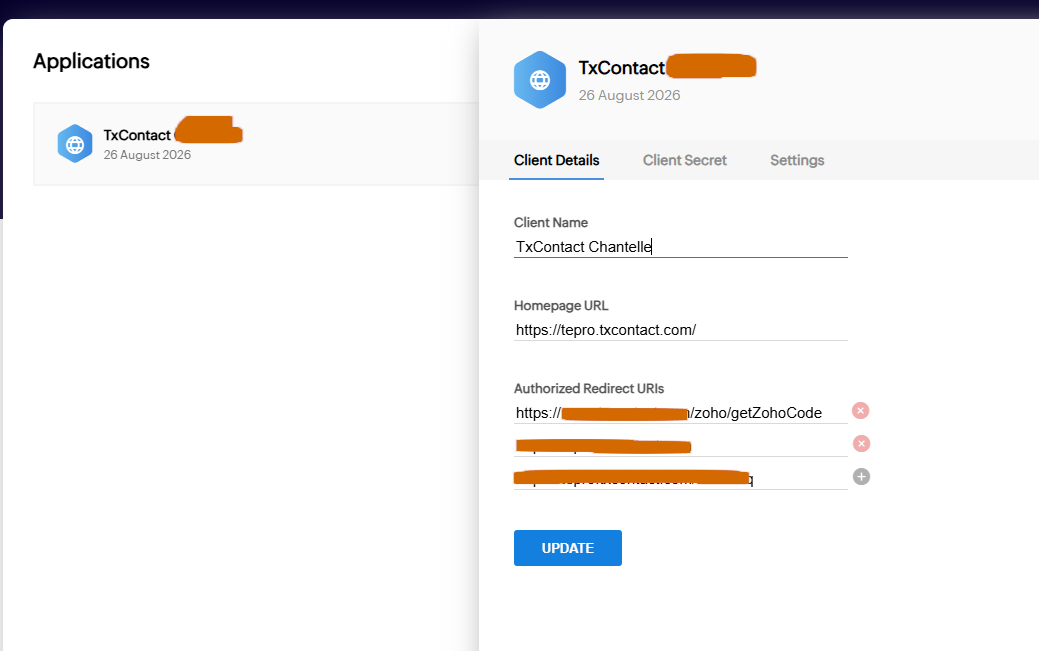
it should be something like this "https://tepro.txcontact.com/zoho/getZohoCode"
You can verify the redirect URL here in the zoho site
link: https://api-console.zoho.com/
Did you find it helpful?